
Set up a VPN on your own server
If you don't have a server yet, choose a VPS that fits your needs from Amnezia Hosting. All Amnezia Hosting servers meet AmneziaVPN's setup requirements. You can compare server specifications when choosing a plan.
Use the AmneziaVPN app to set up a VPN on a Linux server you own or rent. You won't need to enter any terminal commands.
Before you start, have your server's IP address, username, and password or SSH private key ready.
Servers from other hosting providers
Check the server requirements before you start. Installation may fail if your server doesn't meet them.
Incompatible hosting providers
The Amnezia setup guide lists servers from Reg.ru and Yandex Cloud as incompatible with VPN installation through AmneziaVPN.
Set up your VPN
Update the app
Update AmneziaVPN to the latest version before setting up or making changes to a self-hosted server. Updates improve AmneziaWG, fix bugs, and make connections more stable.
Download and install AmneziaVPN from the official download page (mirror) or the latest stable release on GitHub. If you already have the app, update it.
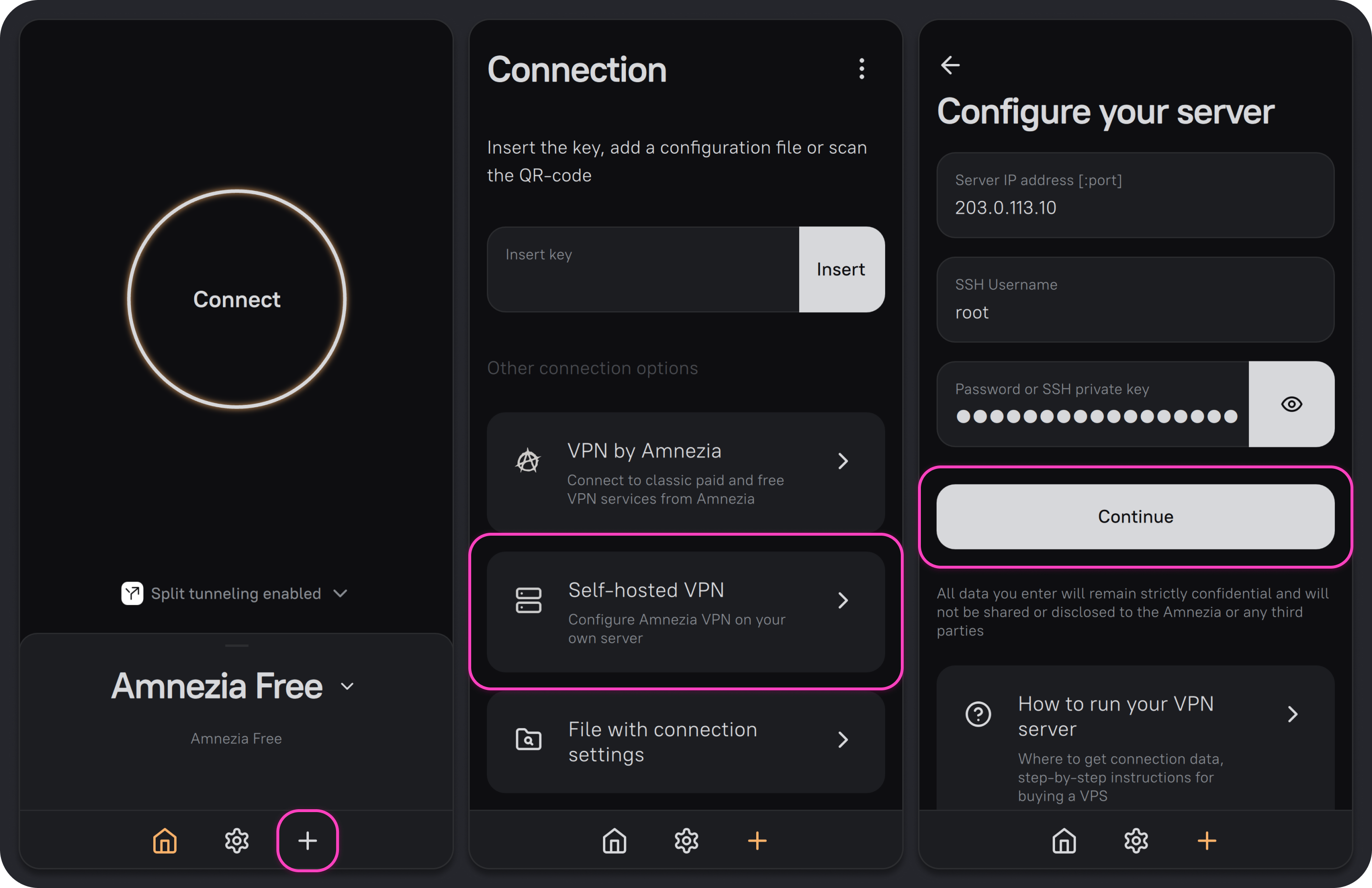
Open AmneziaVPN. Click ➕, or Let's get started if you haven't added any connections yet.
Select Self-hosted VPN.
Enter your server's login details
Once you've purchased a server, you'll find its login details in your Amnezia Hosting account. Sign in with the email address and password you used to create your account.
You'll need:
- Server IP address [:port]. If the server uses an SSH port other than
22, add the port after a colon, for example203.0.113.10:2221. - SSH Username — for example,
rootor a user with sudo privileges who can run commands as an administrator. - Password or SSH private key.
Click Continue.
- Server IP address [:port]. If the server uses an SSH port other than
Choose an installation type and click Continue:
Automatic installs AmneziaWG only. You can add other protocols later.
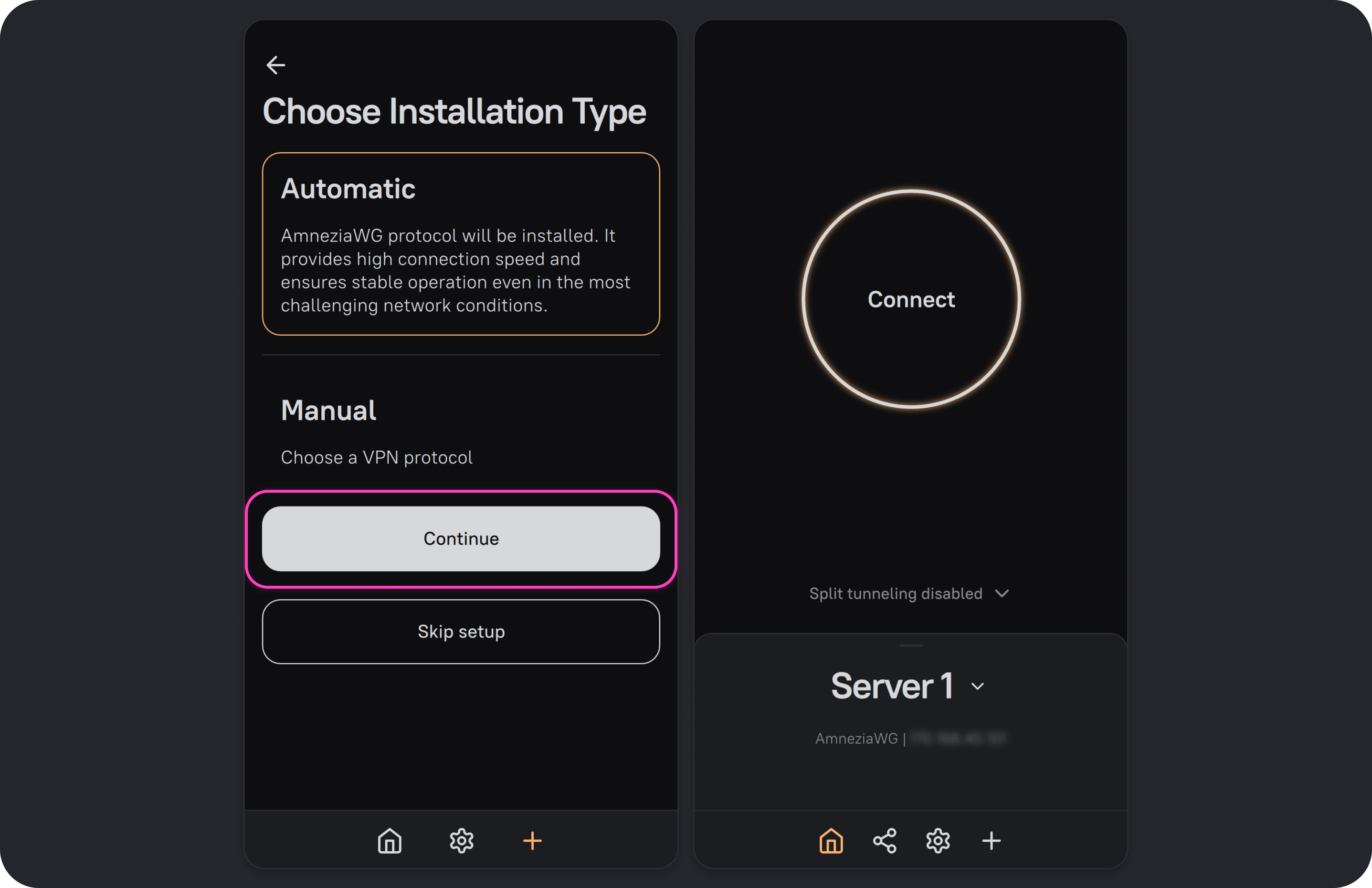
Manual lets you choose which protocol to install. Select a protocol and click Install. You can add other protocols later.
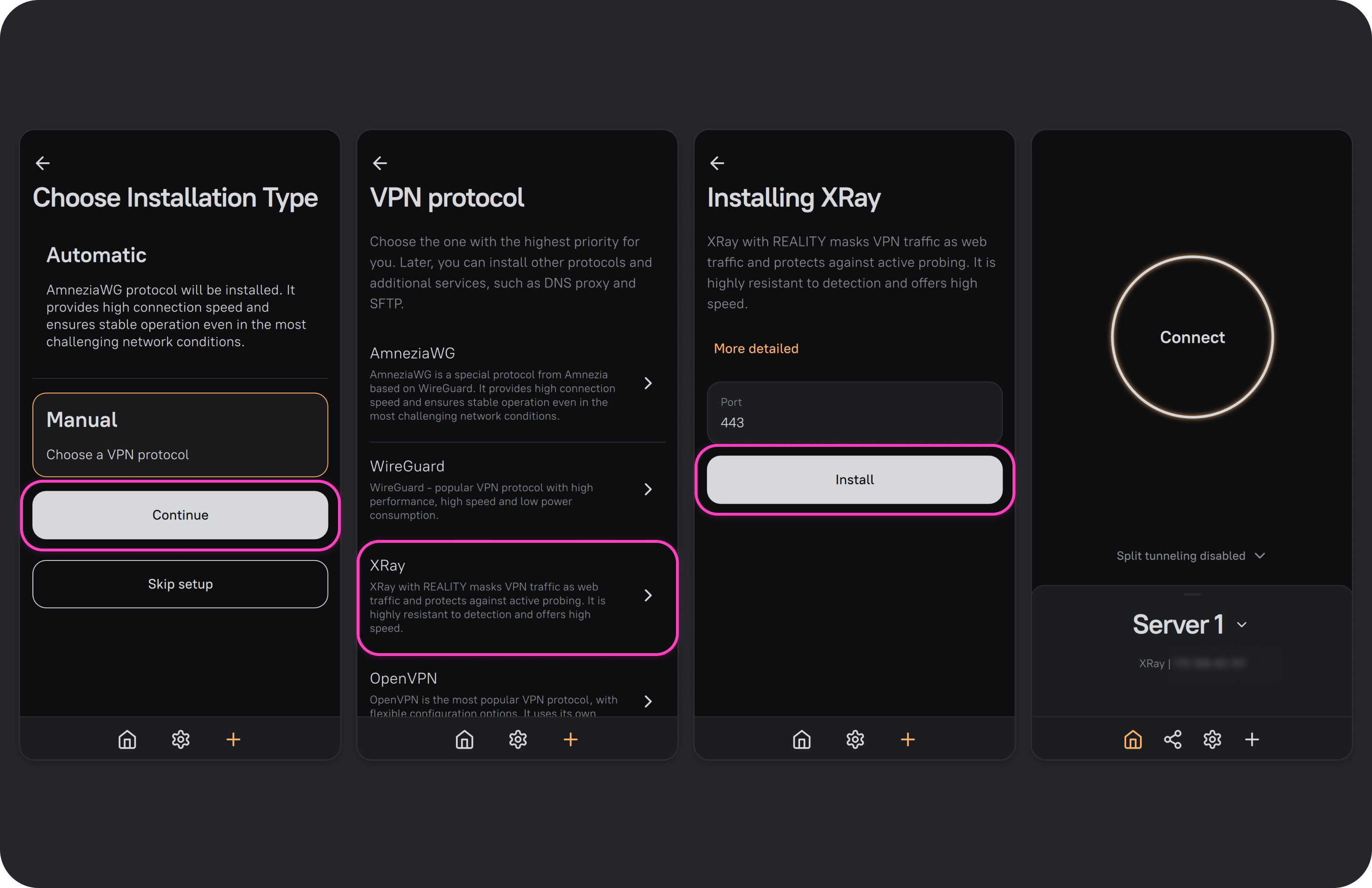
When setup is complete, the app creates a VPN connection with full access to your server. The connection is ready to use.
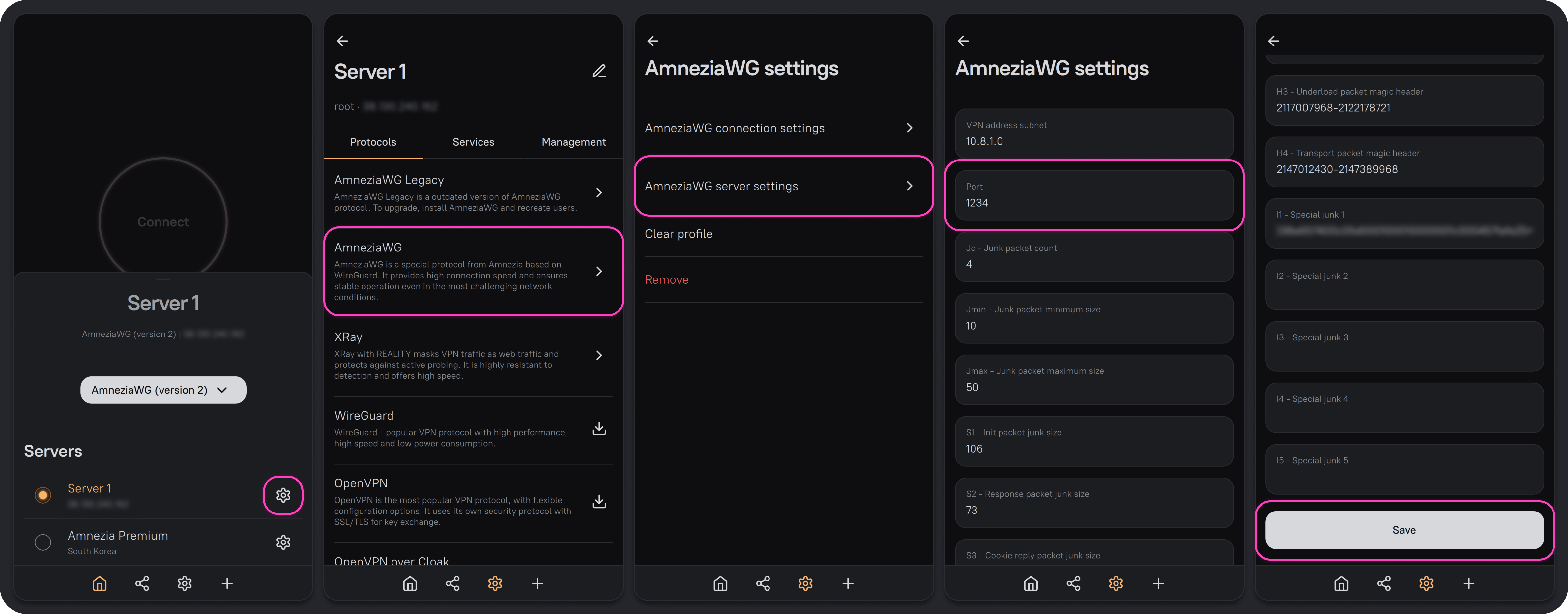
Choose an AmneziaWG port below 9999
By default, AmneziaWG uses a randomly assigned port. Some internet providers block UDP traffic on high ports. After installation, we recommend switching to an unused port below 9999, such as 585 or 1234. Make sure no other service on the server is using that port.
If your VPN isn't working, see the AmneziaWG troubleshooting guide.
To connect another device or give someone access to your VPN, see Share and revoke VPN access.
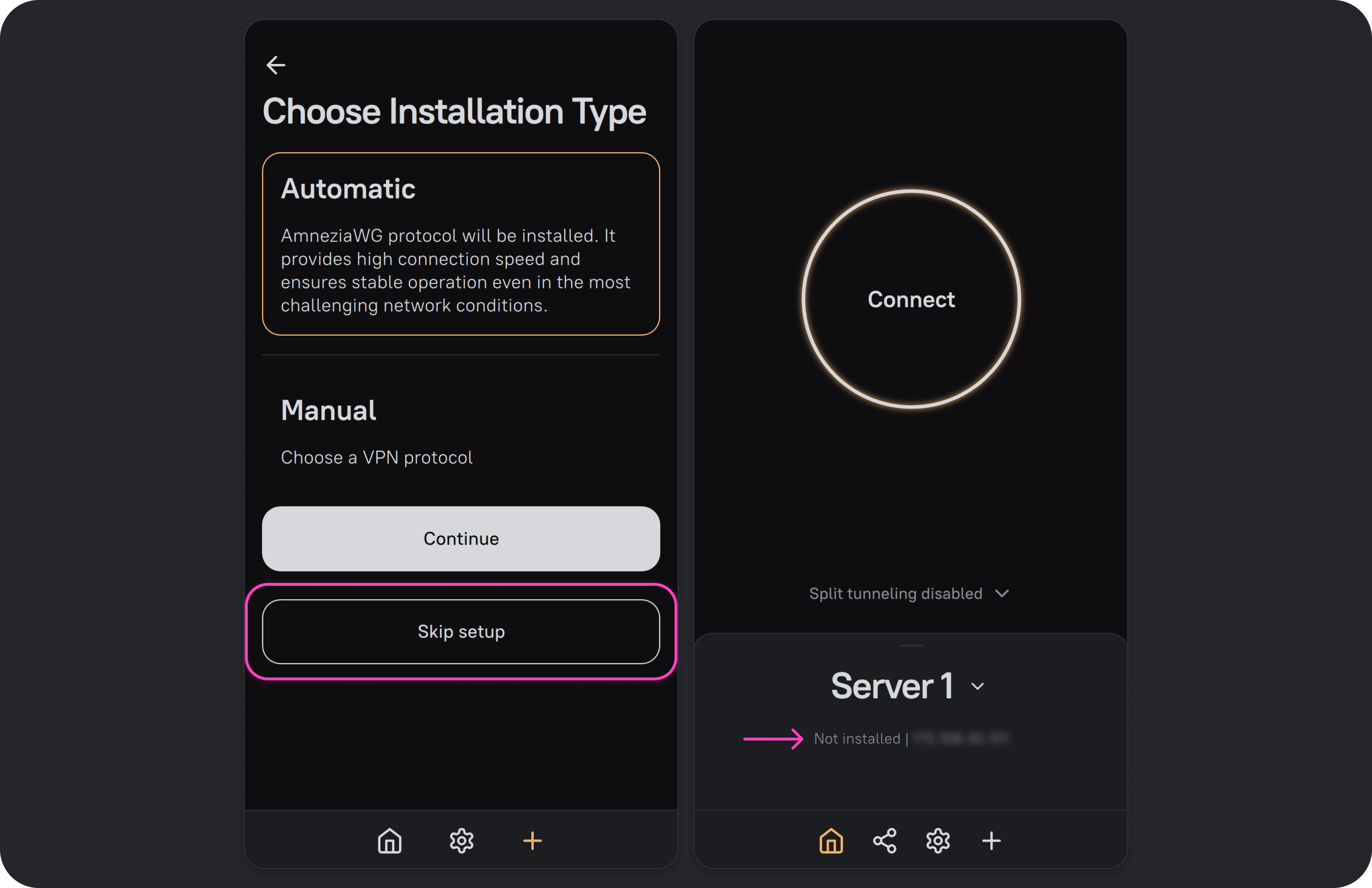
If you clicked “Skip setup”
Clicking Skip setup adds an empty connection without running any commands on the server.
Use this option if the server already has a VPN installed through AmneziaVPN. It lets you add a connection with full access without a backup file or a full-access key.
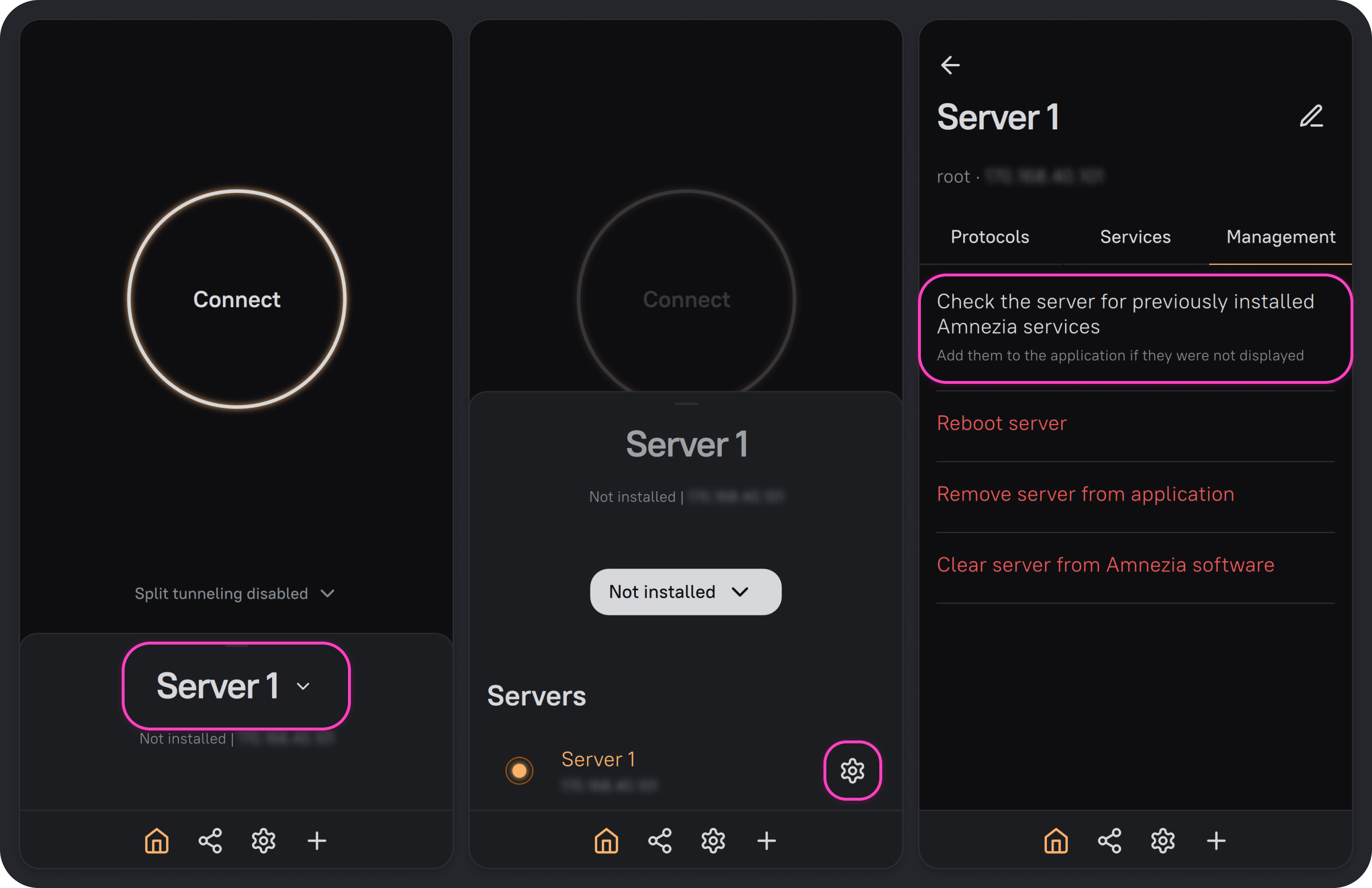
VPN is already installed on the server
- Click any connection name.
- Click ⚙️ next to your server.
- Open the Management tab and select Check the server for previously installed Amnezia services.
The app updates the connection to show the VPN protocols and services already installed on the server.
You skipped setup by mistake on a fresh server
- Click any connection name.
- Click ⚙️ next to your server. You'll see a list of protocols you can install.
- Click 📥 next to the protocol you want, then click Install.
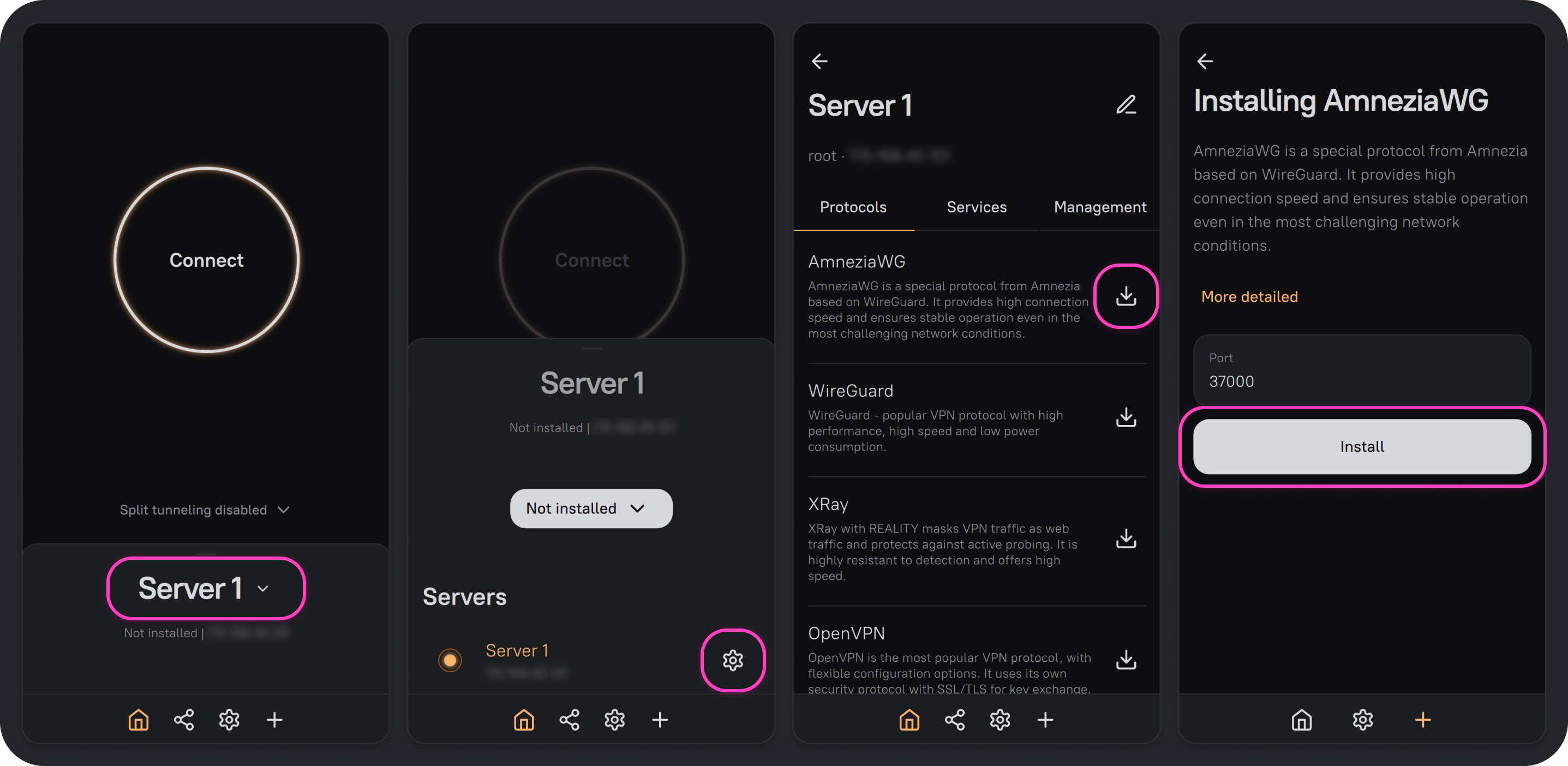
Installing AmneziaWG after skipping setup.
Once installation is complete, you can use the connection to access the VPN and manage the server.
You can install other protocols in the same way:
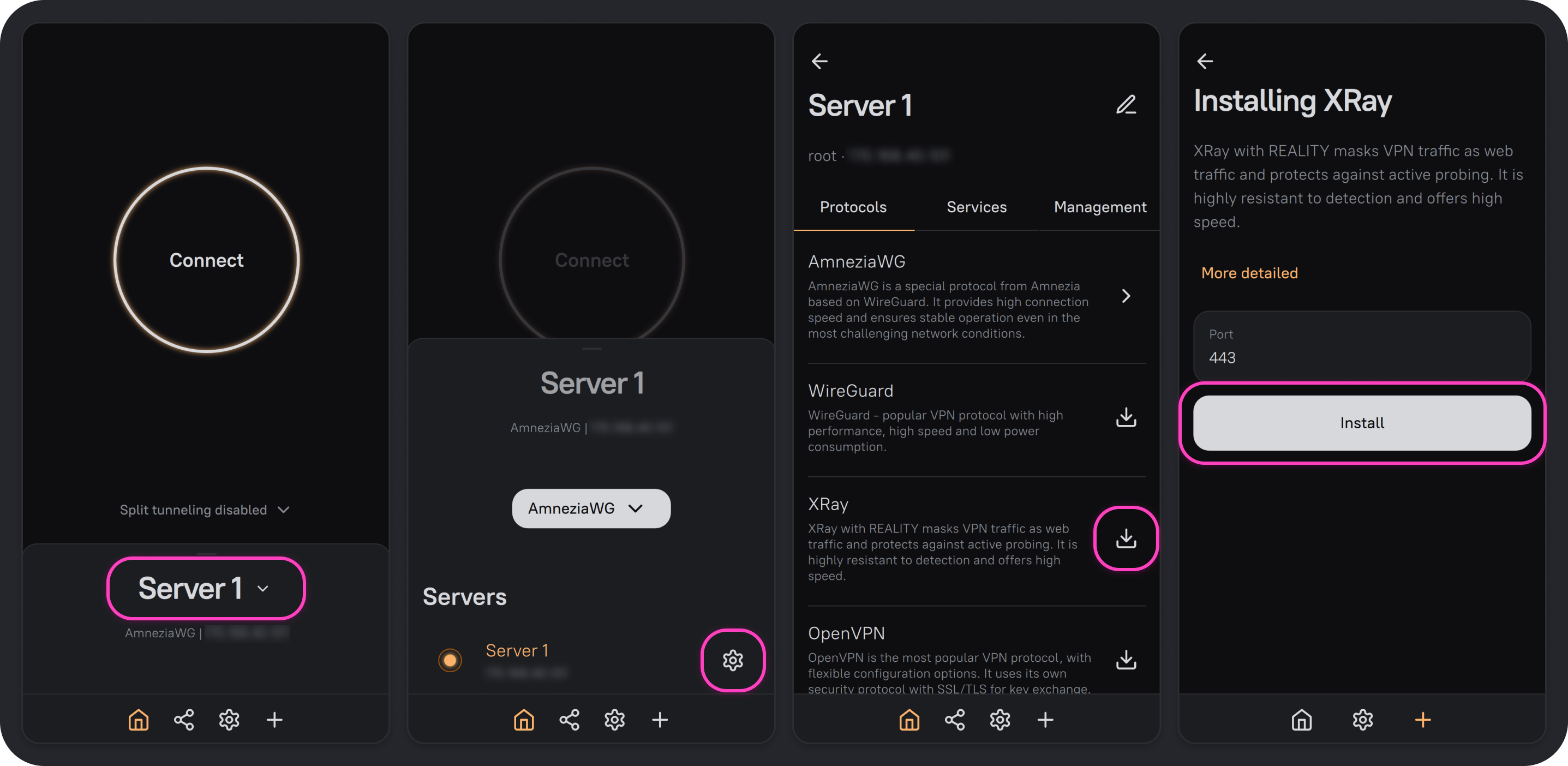
Adding XRay as another VPN protocol.
What you can do with the connection
With full access, you can connect to the VPN and manage your server in AmneziaVPN: