
Set up SFTP file storage
Overview
AmneziaVPN also lets you set up file storage on your virtual server. Access your files with an SFTP client such as FileZilla, or mount the storage as a local folder on your computer.
Install the SFTP service
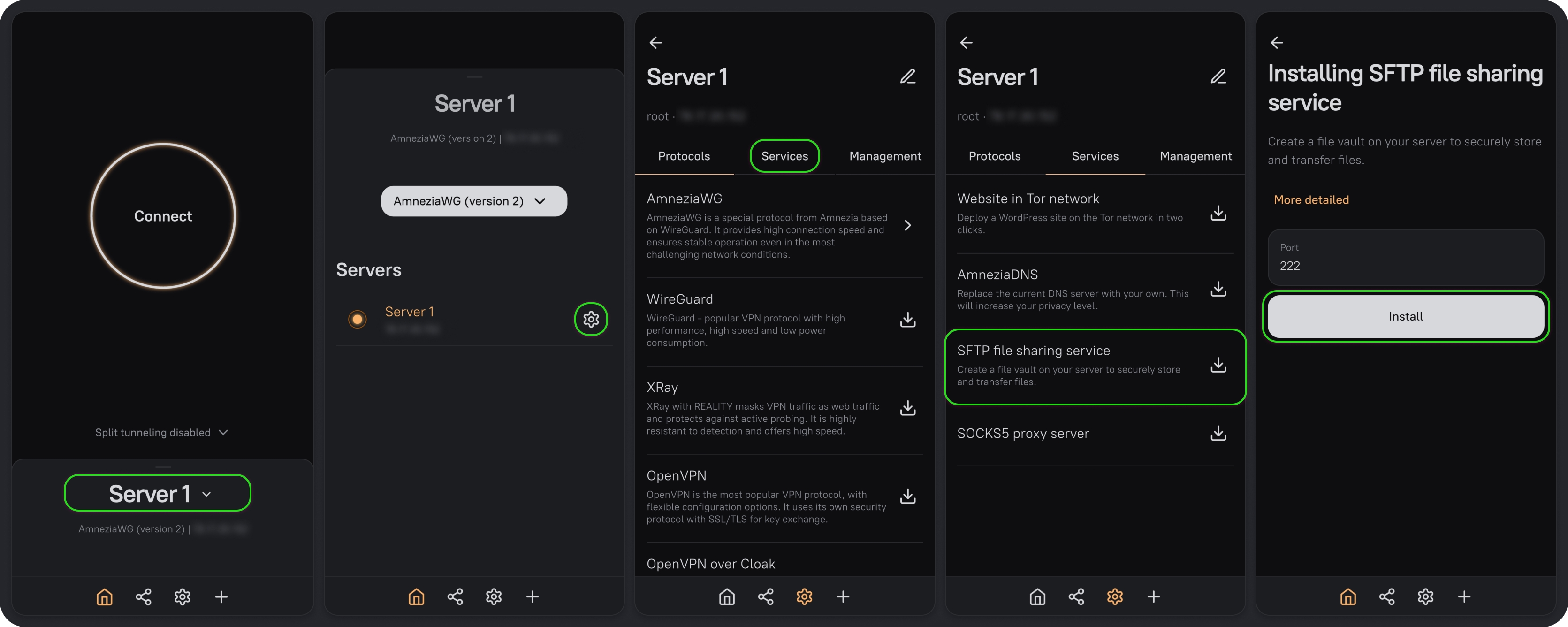
- On the main screen, click the server name.
- Click the settings icon next to the server name.
- Go to the Services tab and select SFTP file sharing service.
- Leave the port set to
222, or choose a different port. Then click Install.
Find your connection details
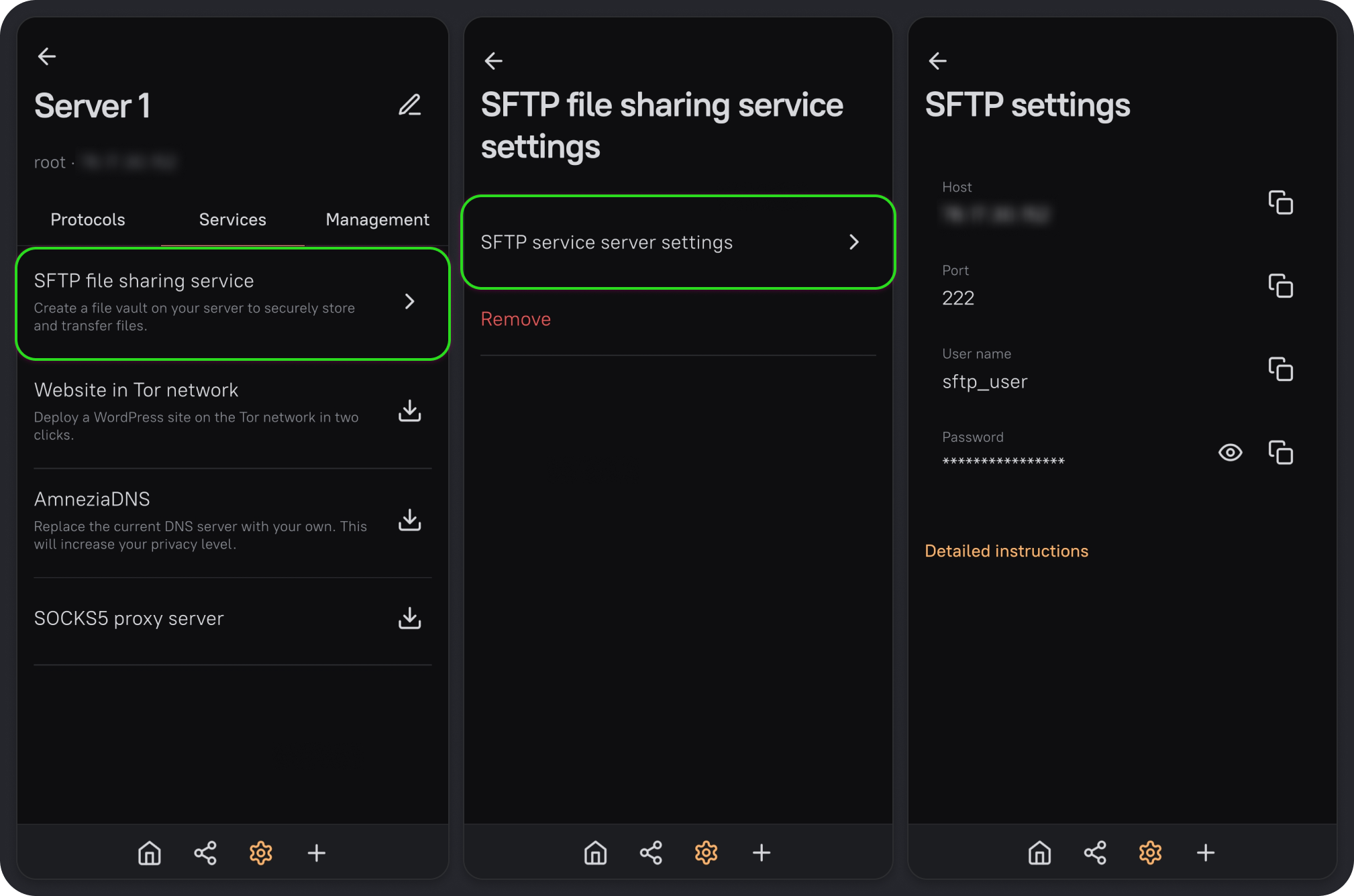
- Once installation is complete, return to the Services tab and select SFTP file sharing service.
- Select SFTP service server settings to open SFTP settings.
This screen shows the host, port, username, and password you'll need to connect with an SFTP client.
Connect with FileZilla
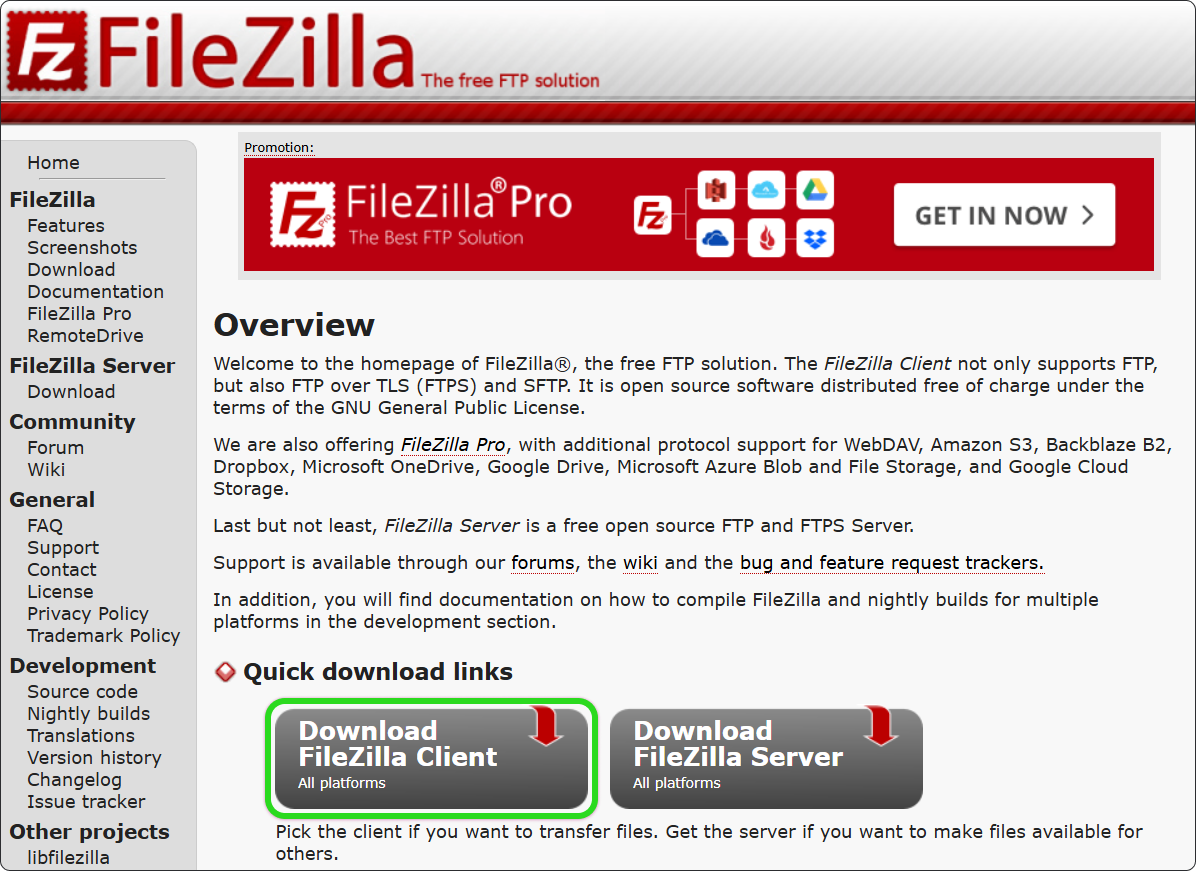
Go to the FileZilla website and click Download FileZilla Client.
Download FileZilla Client for your operating system.
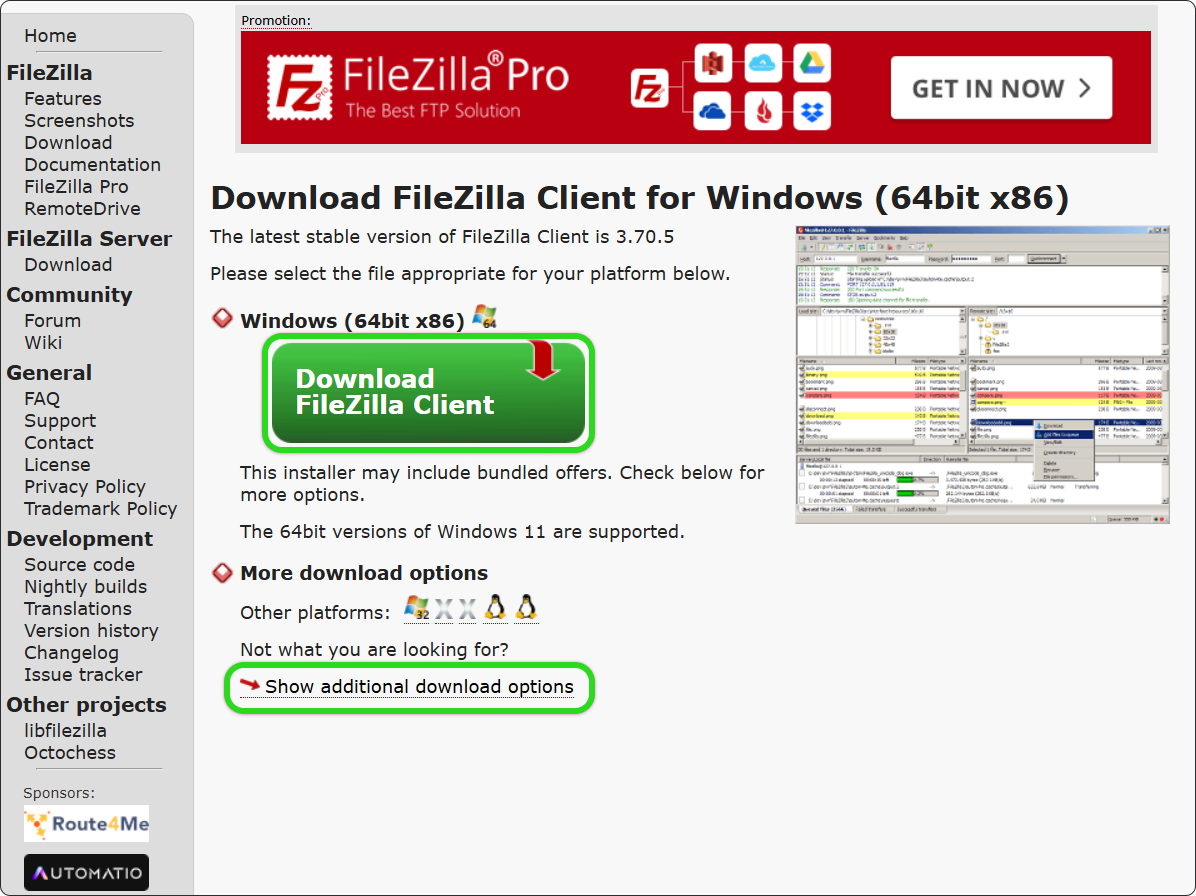
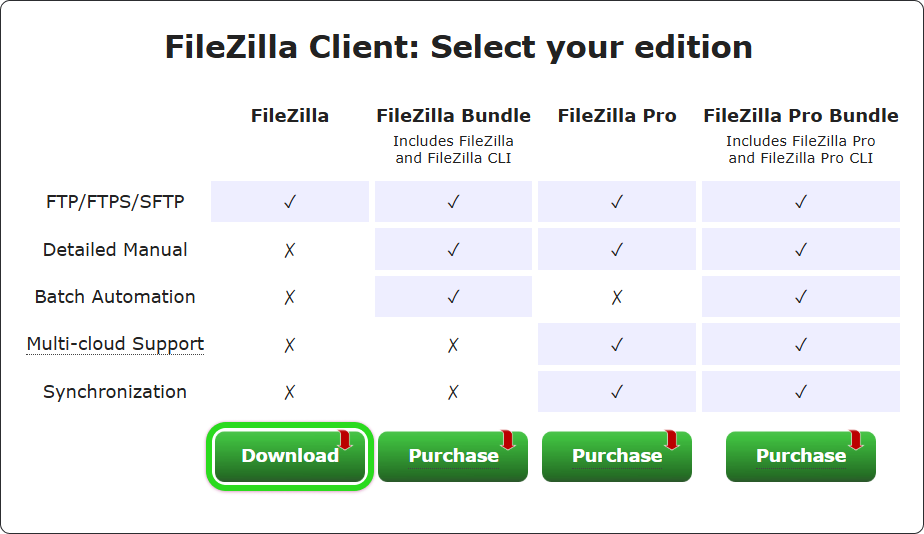
If you're asked to choose an edition, select the free FileZilla edition and click Download.
Install FileZilla.
Open FileZilla. In Host, enter your server's IP address preceded by
sftp://, for examplesftp://199.10.20.171.Enter the username, password, and port shown in the SFTP settings in AmneziaVPN.
Click Quickconnect.
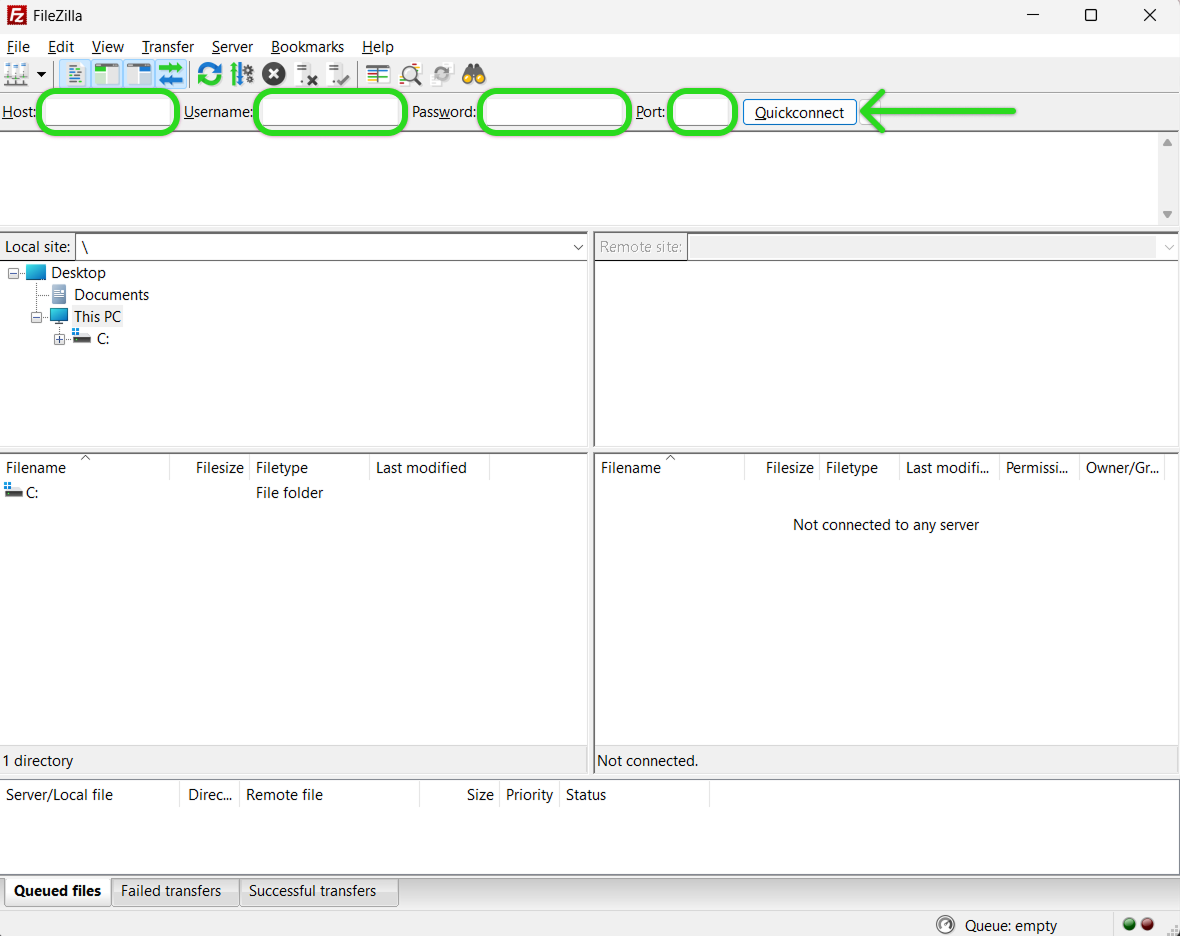
When your server's folder appears under Remote site, you're connected. You can now use FileZilla to access your files.