
Host a WordPress site on Tor
Use AmneziaVPN to host a WordPress site on your server and make it available on the Tor network.
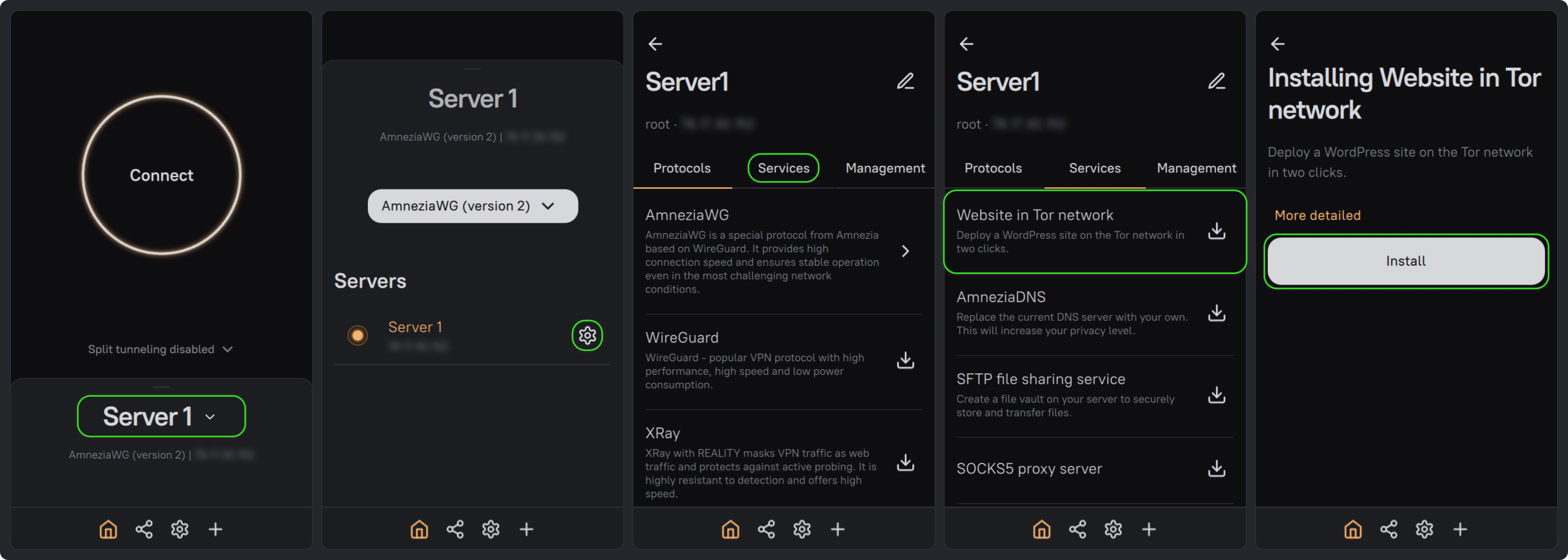
On the main screen, click the server name, then click ⚙️ next to your server. Open the Services tab, select Website in Tor network, and click Install.
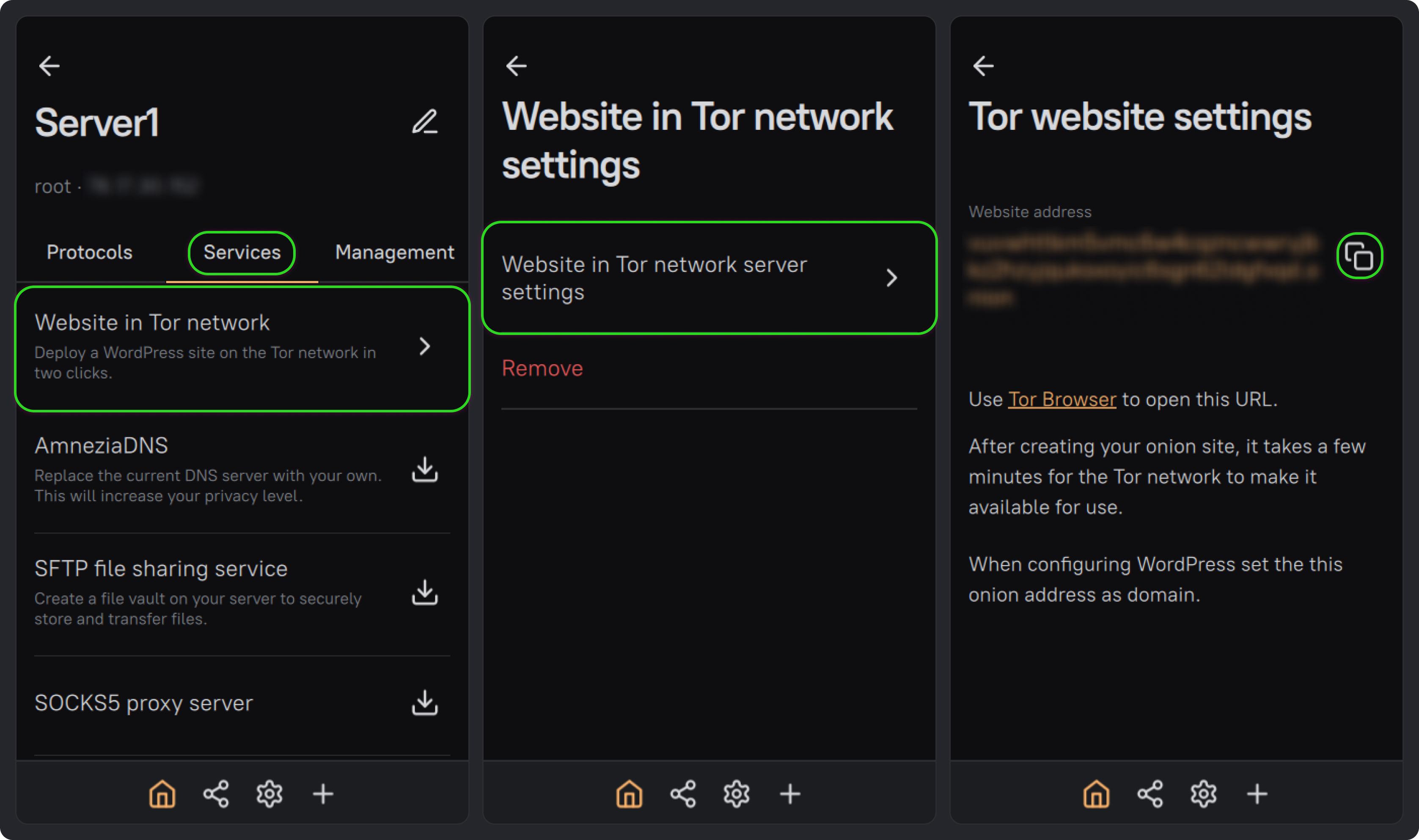
Once installation is complete, return to the Services tab. Select Website in Tor network, then Website in Tor network server settings. Copy the Website address and open it in Tor Browser.
The site may take a few minutes to become available on Tor. Use this onion address as the domain when setting up WordPress.
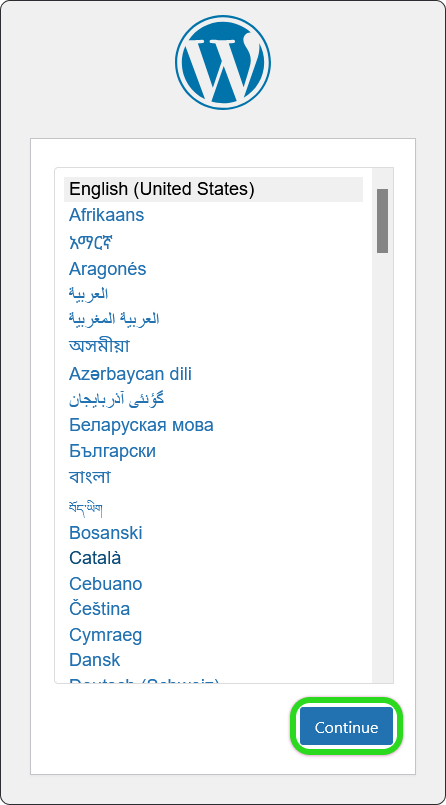
In WordPress, select English (United States) and click Continue. The steps below use the English interface.
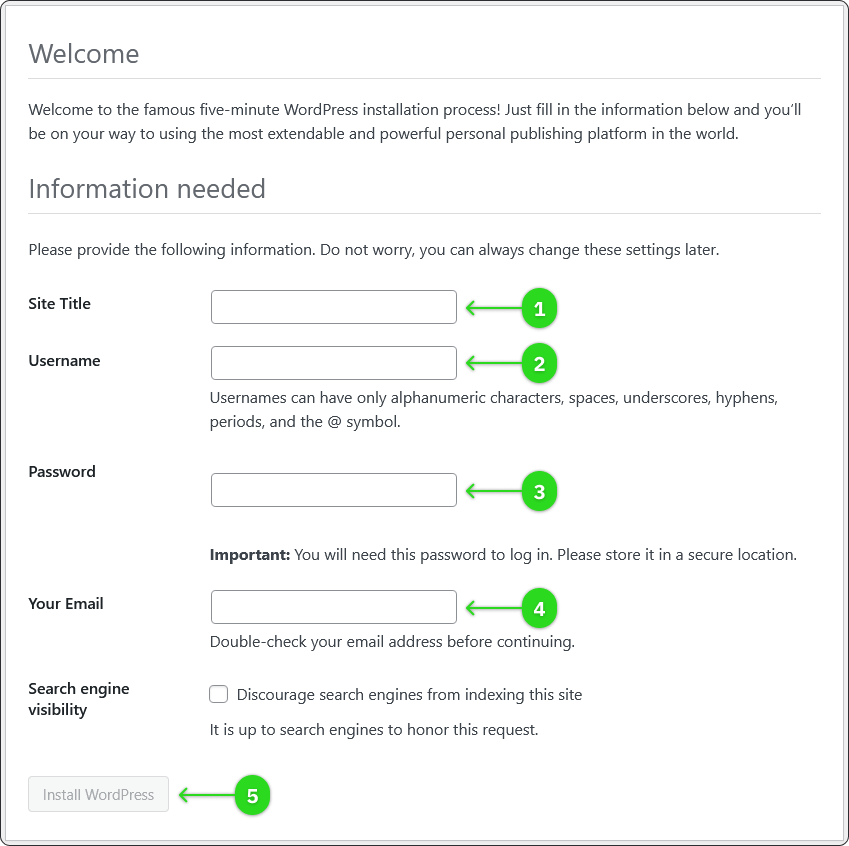
Enter your site title, username, password, and email address. Save your password, then click Install WordPress.
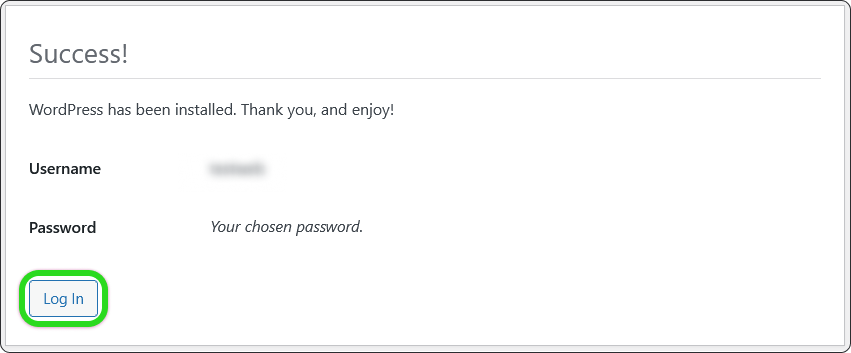
Once WordPress is installed, click Log In.
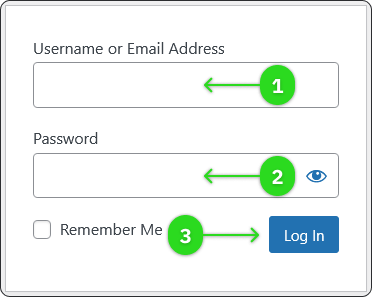
Enter your username or email address and password, then click Log In.
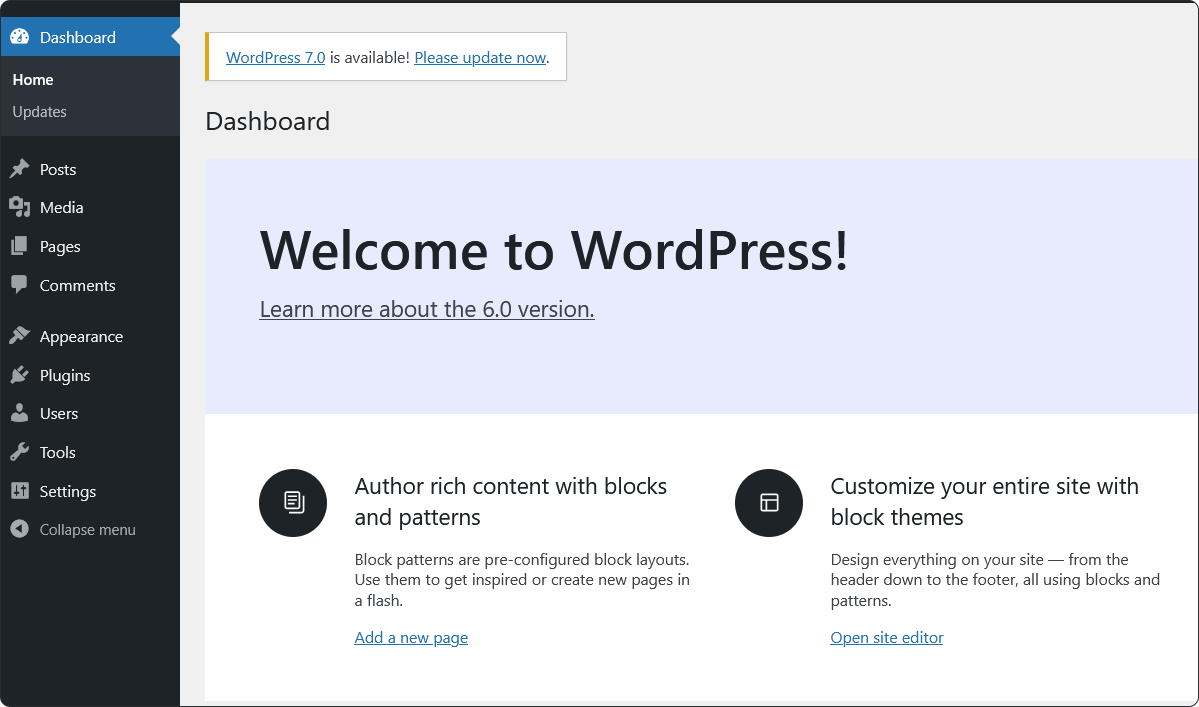
The WordPress dashboard opens. You can now customize your site and publish content.
For help building your site, see the WordPress documentation.