
Install and configure VPN protocols
Supported protocols
AmneziaVPN lets you install and configure several open-source VPN protocols on your own server: AmneziaWG, XRay VLESS Reality, OpenVPN, and WireGuard.
For a comparison, see the protocol overview. The sections below explain where to find protocol settings and which options you can change.
Open protocol settings
- Open AmneziaVPN and click the server name at the bottom of the screen.
- Click the gear icon next to your server.
- Open the Protocols tab and select a protocol.
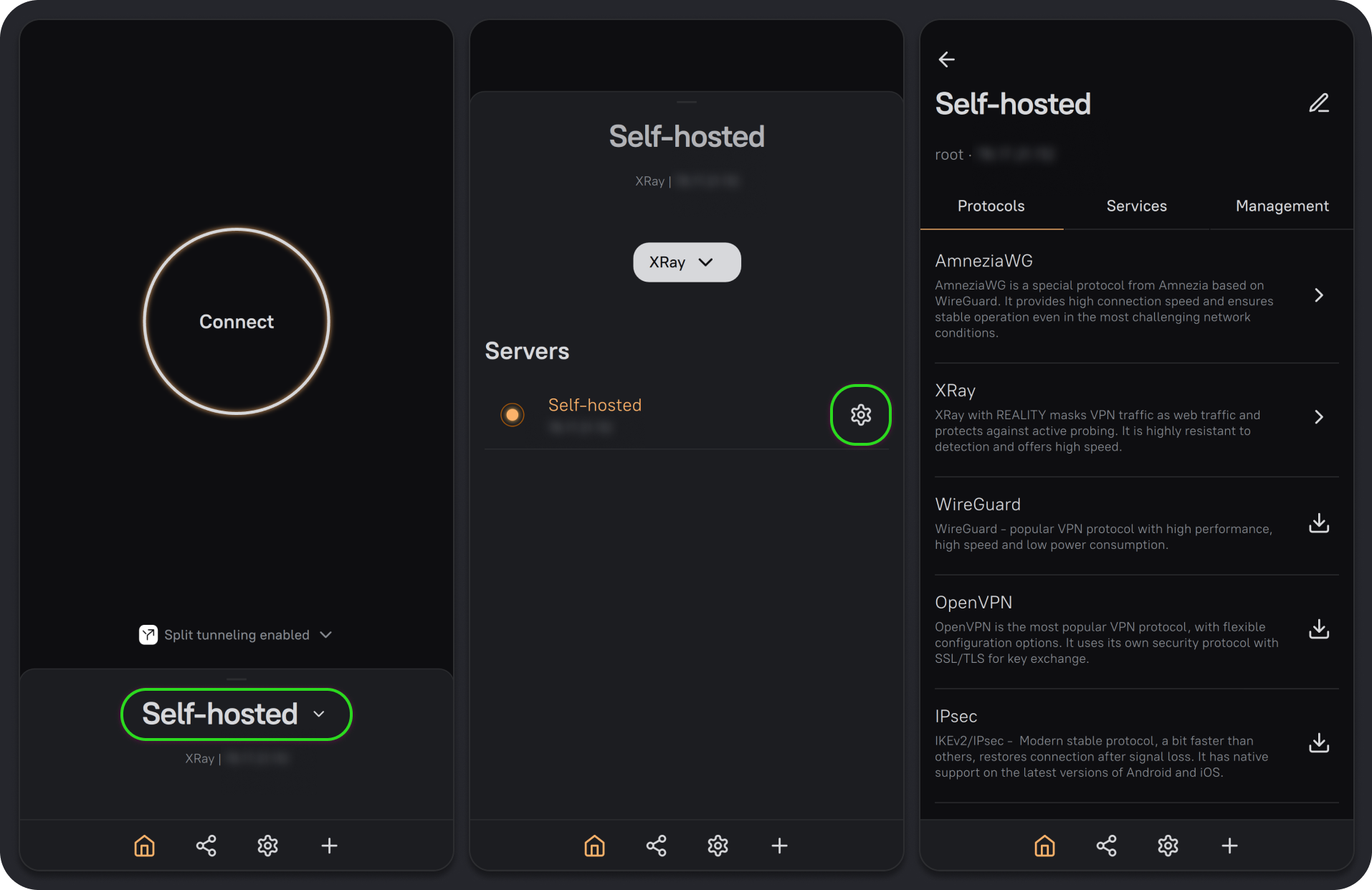
XRay VLESS Reality settings
XRay configuration restrictions
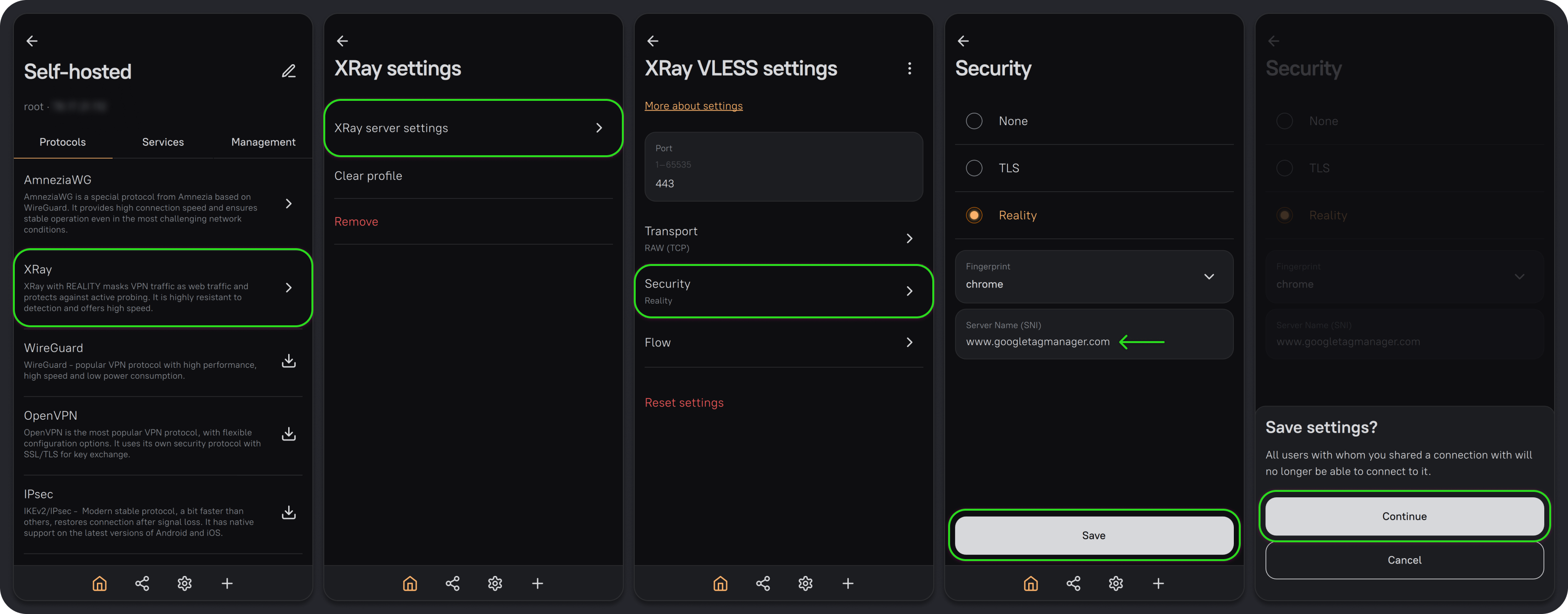
Only change Server Name (SNI) and, if necessary, the port in the XRay VLESS Reality server settings. Changing any other settings will stop the connection from working.
Keep the default port, 443, unless it is already in use. The port you choose for XRay must be available for both TCP and UDP. For example, you cannot use port 443 for XRay if AmneziaWG is already using 443/UDP.
- On the Protocols tab, select XRay.
- Open XRay server settings.
- Under XRay VLESS settings, open Security.
- We recommend using
www.googletagmanager.comfor Server Name (SNI). - Click Save, then Continue.
OpenVPN settings
OpenVPN lets you:
- Change the subnet address.
- Choose the network protocol.
- Change the port.
- Choose the cipher and hashing algorithm.
- Enable TLS auth to add an HMAC signature to SSL/TLS handshake packets and verify their integrity. Packets without a signature are not processed. This adds protection against certain attacks.
- Enable Block DNS requests outside of VPN to prevent DNS leaks.
AmneziaWG settings
In AmneziaWG, you can change Magic headers and Junk packet sizes.