🔀 Cascade: get your VPN working again without changing servers
If your server's IP address becomes unreachable from your region, the VPN stops connecting. Until now, the only way out was a new server with a new IP: rent it, install the VPN again, and move everything over from the old server.
Cascade works differently: your server stays the same, and you connect to it through a new address. The only thing you need to update is the connections — yours and those of everyone you have shared access with.
How it works
Cascade is an intermediate node between your device and your server. Your provider only sees a connection to the Cascade address, and Cascade forwards the traffic on to your server. You go online just as before — with your server's IP address.
Cascade cannot see your traffic
It only forwards encrypted packets. The encryption keys exist only on your devices and on your server.
What Cascade includes
After payment you get two addresses. They come from different subnets: if one becomes unreachable from your region, the other keeps working.
| Address | Protocol | Used for | Example |
|---|---|---|---|
| VPN address | UDP | Connecting to the VPN over AmneziaWG | 198.51.100.24 |
| SSH address | TCP | Managing the server, including from the Amnezia VPN app | 203.0.113.89 |
Before you start
- Your server is rented from Amnezia Hosting — Cascade works only with our servers.
- The Amnezia VPN app is installed, version 5.1.1.10 or later.
- You have the server login details at hand: username
rootand the password. You can find them in your account, on the server card. - The Cascade service is paid for and shows up in your account.
The addresses in the screenshots are examples
Yours will be different. Just enter them in the same places as shown in this guide. The screenshots show the Russian-language interface; the names of buttons and fields are given in the text.
Step-by-step setup
Server not added to the app yet? Do this first
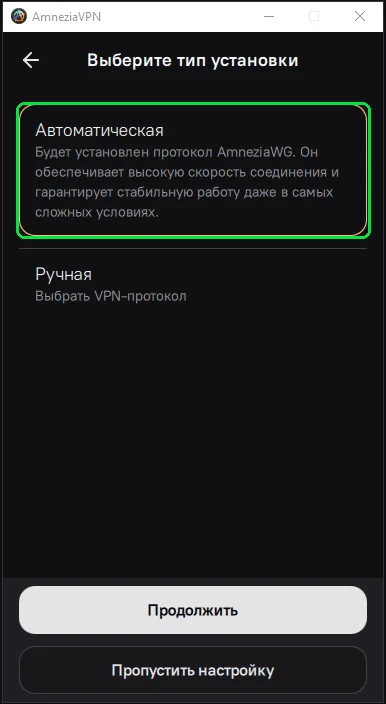
In Amnezia VPN, tap «+», enter the server IP address, the username root, and the password from the server card in your account. Choose the Automatic installation and wait for it to finish — the app will install the AmneziaWG protocol.
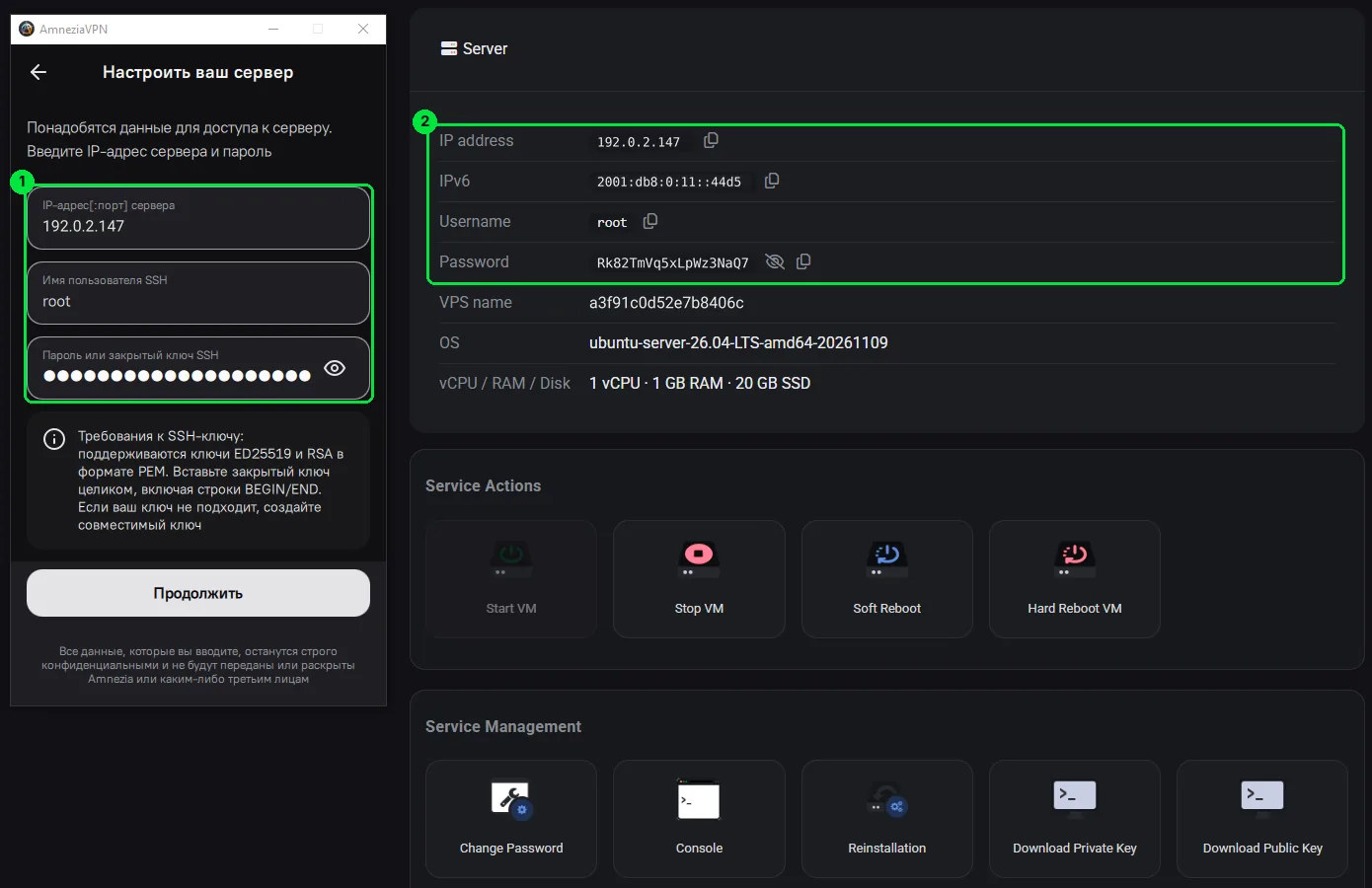
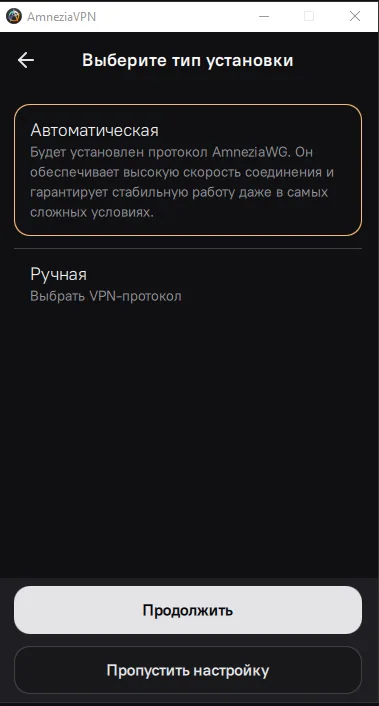
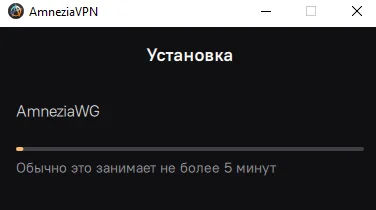
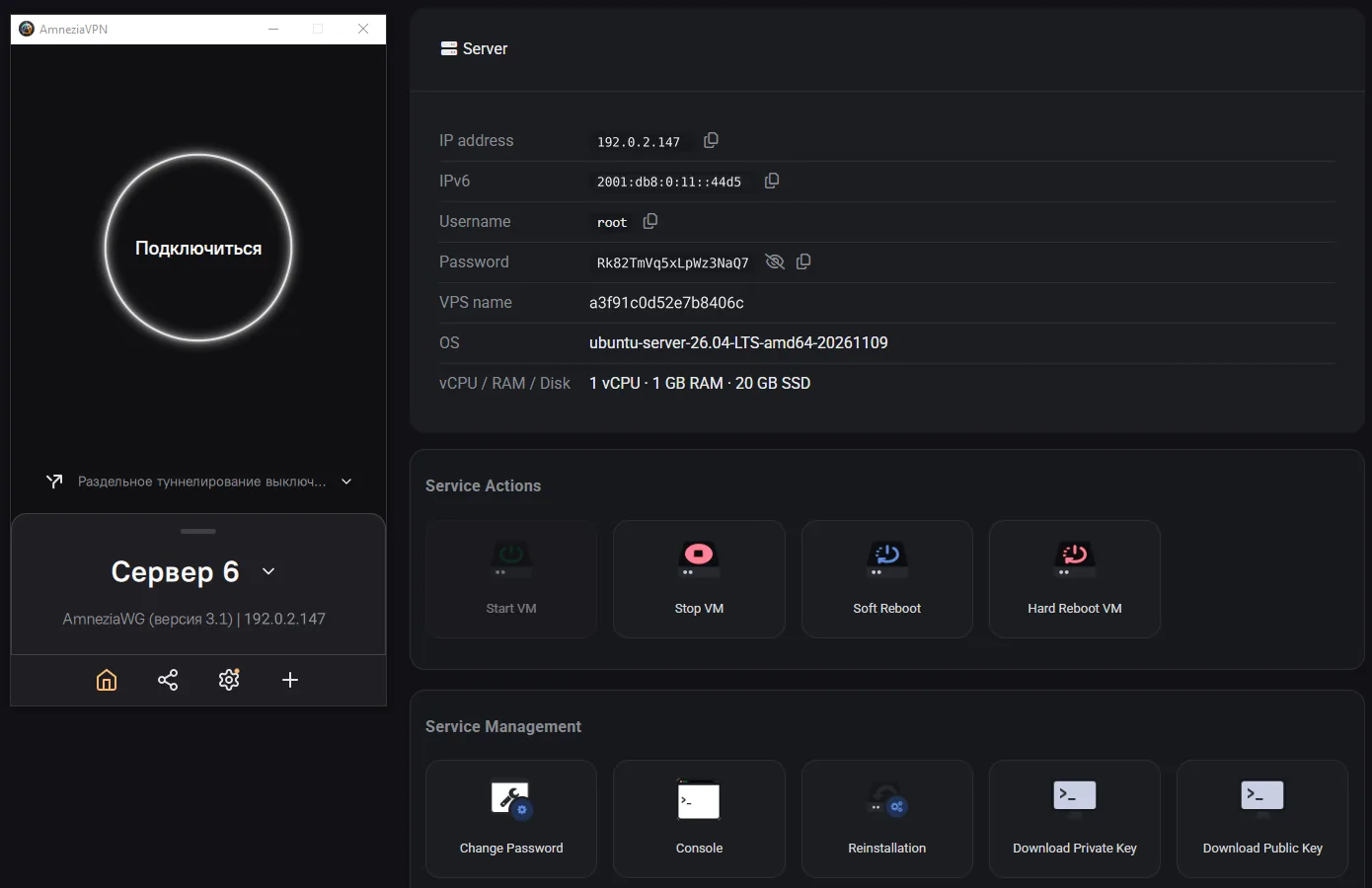
If the server IP is already unreachable from your region, skip this: the server will be added through Cascade in step 4.
Find the AmneziaWG port
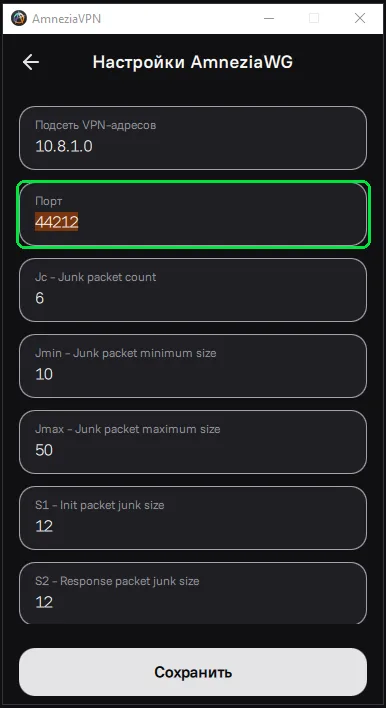
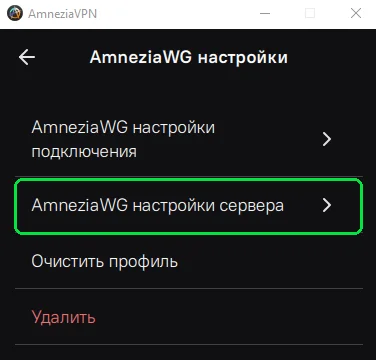
In the app, open the server settings → AmneziaWG → AmneziaWG server settings. Note the number in the Port field — 44212 in this example.
Set up Cascade in your account
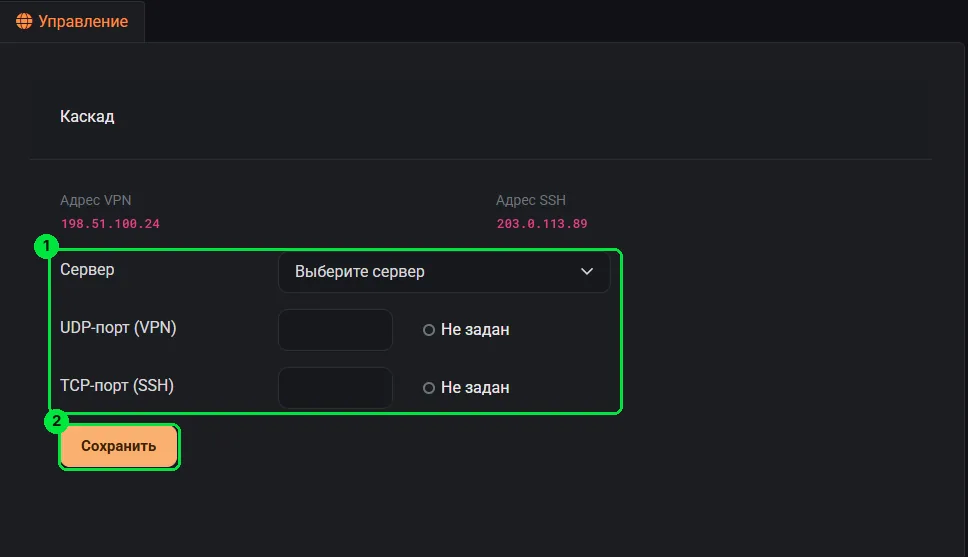
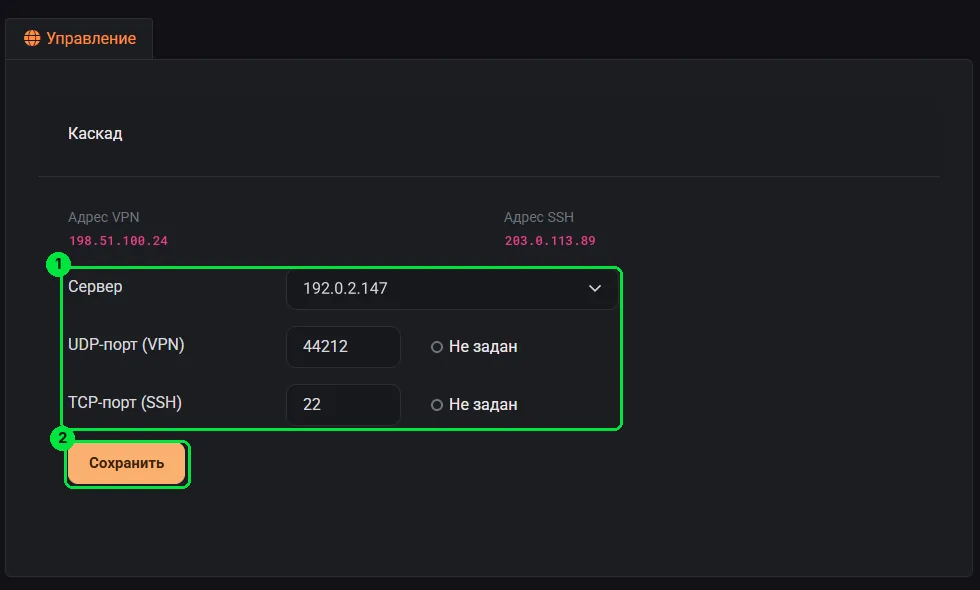
Open the Cascade service and go to the Management tab. Your VPN address and SSH address are already shown there. Fill in three fields:
- Server — pick your server from the list;
- UDP port (VPN) — the AmneziaWG port from step 1;
- TCP port (SSH) —
22, unless you changed the SSH port.
Click Save.
Wait for the “Active” status
Two lines with a status will appear to the right of the fields. Cascade usually turns on within a few seconds.
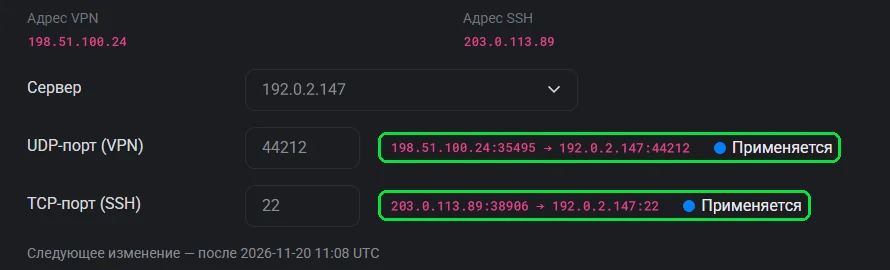
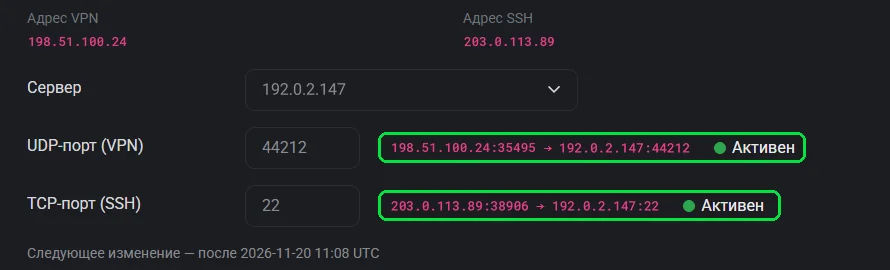
Each line shows where Cascade forwards connections. For example, 198.51.100.24:35495 → 192.0.2.147:44212 means: everything that arrives at the Cascade address on port 35495 goes to your server on port 44212.
Write down two values — you will need them next
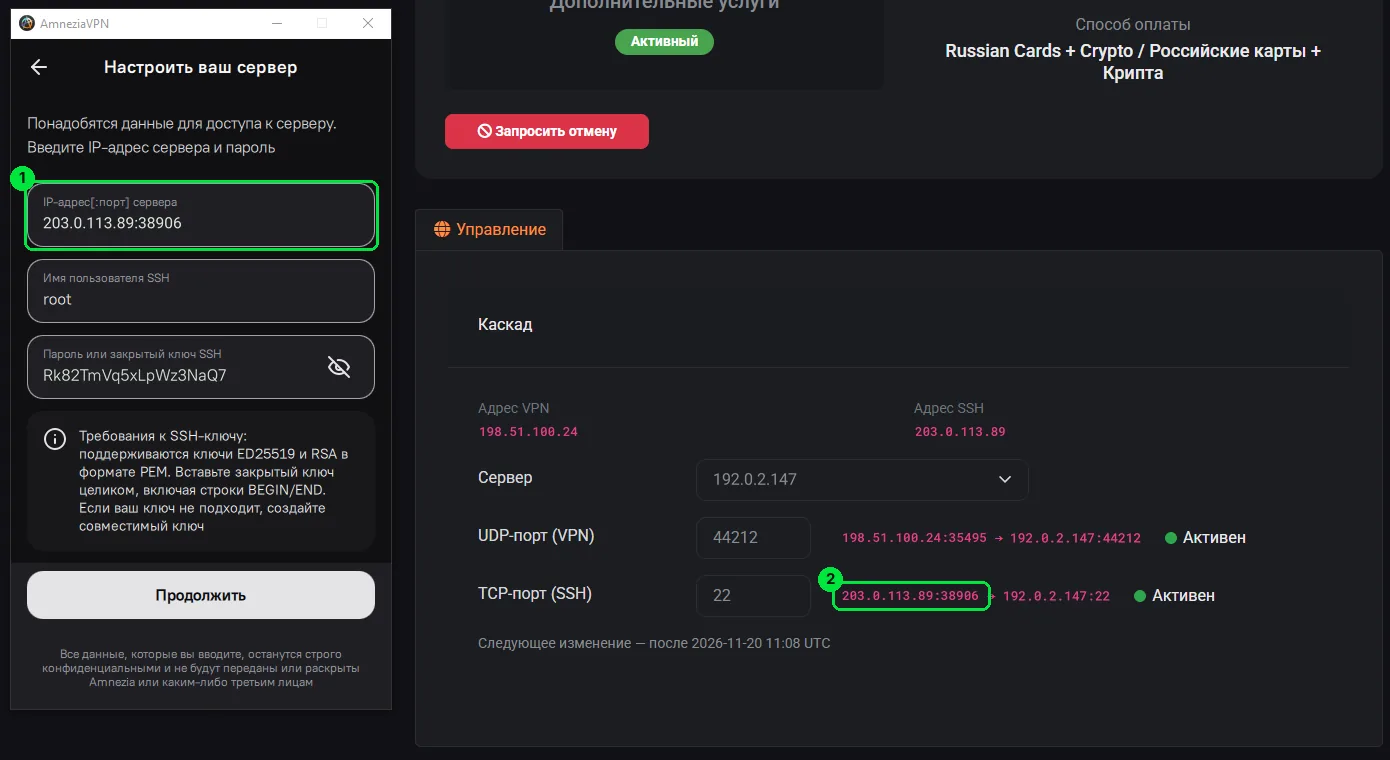
From the TCP port (SSH) line: the address and port to the left of the arrow — 203.0.113.89:38906.
From the UDP port (VPN) line: the port after the colon, to the left of the arrow — 35495.
You can switch Cascade to another server of yours
One Cascade service works with one server, but you can change it: choose another of your servers in the Server field, enter its ports, and save. The Cascade addresses stay the same; for the new server, repeat steps 4 and 5.
You can change the server and ports no more often than the set limit allows. The “Next change — after…” note under the lines shows when the next change becomes available.
Add the server to the app through Cascade
In Amnezia VPN, tap «+» and fill in:
- Server IP address [:port] — the address and port from the TCP line,
203.0.113.89:38906in this example; - SSH username —
root; - Password — the same as before.
Tap Continue, choose Automatic, and wait for it to finish.
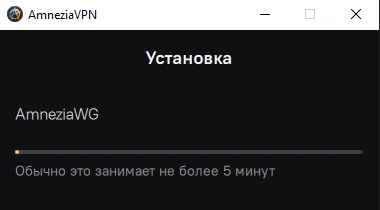
Enter Cascade in the AmneziaWG settings
Open this server's settings → AmneziaWG → AmneziaWG server settings and scroll down to the Cascade connection section:
- Cascade endpoint — the Cascade VPN address,
198.51.100.24in this example; - Cascade port — the port from the UDP line,
35495in this example.
Tap Save.
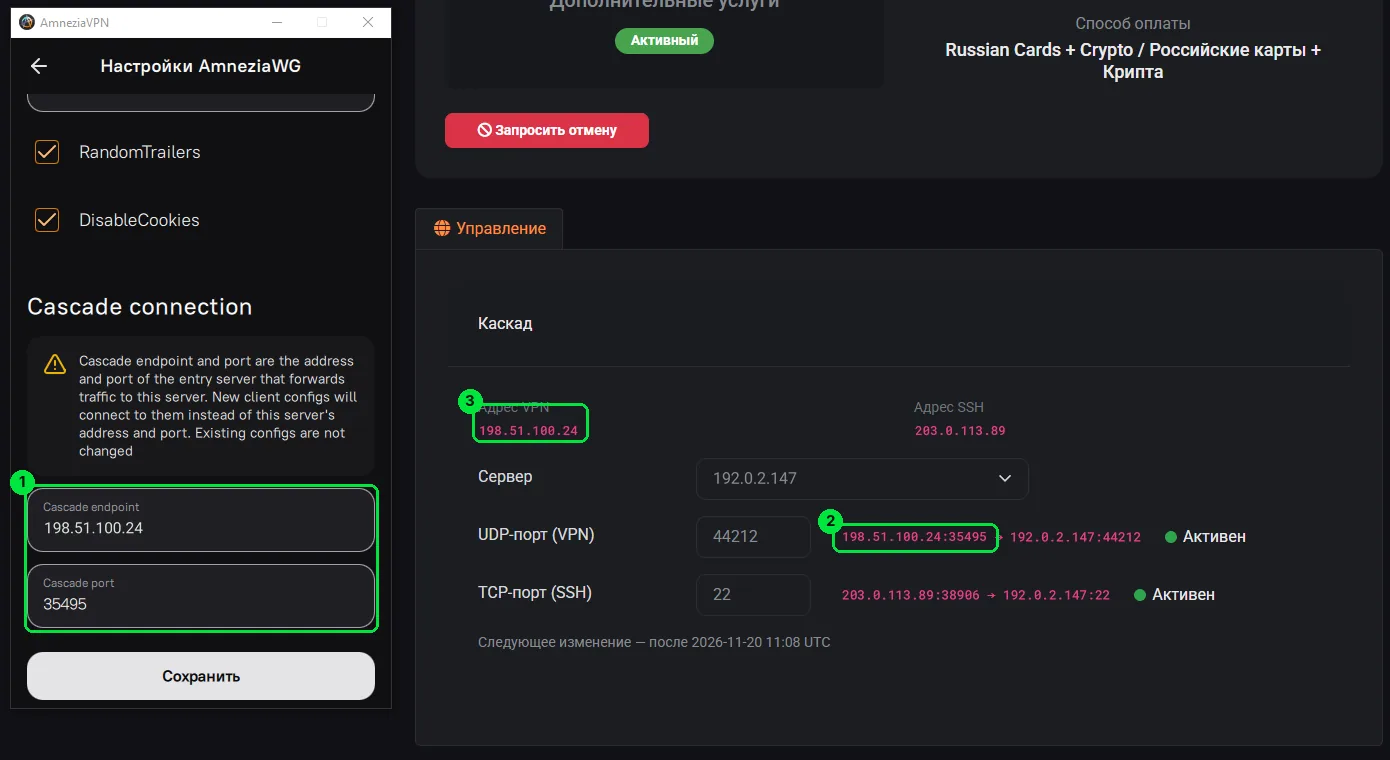
Keys you have already shared will not change
Only connections created after saving will work through Cascade. If other people use your server, share access with them again — see below.
Connect and check
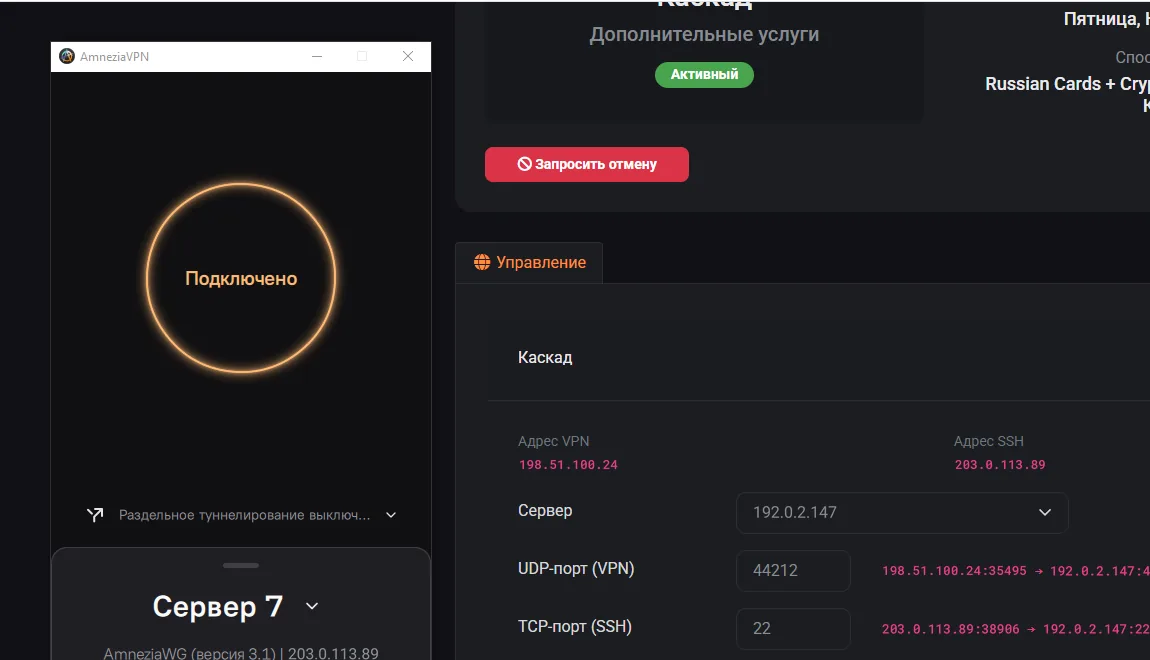
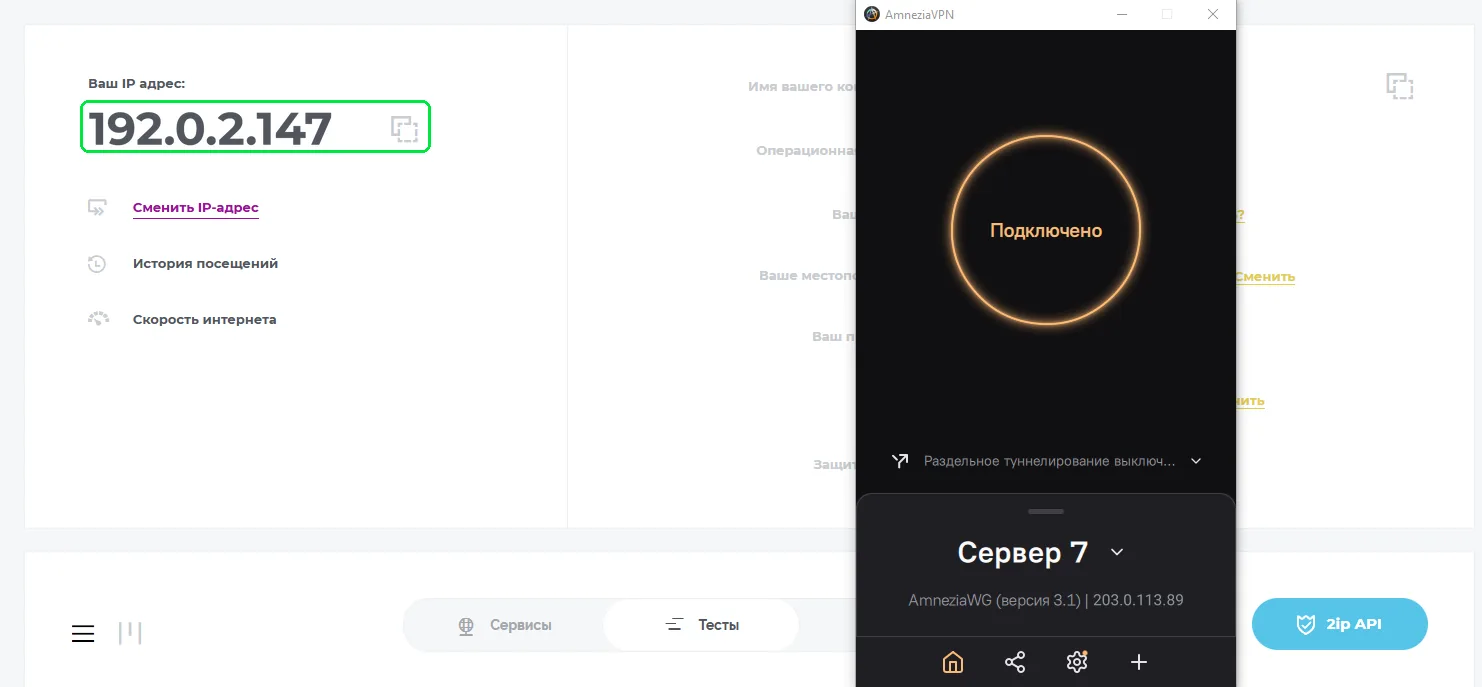
Tap Connect. Then open any IP-check website, for example 2ip.io: it should show your server's IP. That means traffic goes through Cascade to your server and from there to the internet.
Cheat sheet: what goes where
| Where | What to enter | Where to find it | Example |
|---|---|---|---|
| Account → UDP port (VPN) | AmneziaWG port | App → AmneziaWG server settings → Port | 44212 |
| Account → TCP port (SSH) | Server SSH port | Usually 22 | 22 |
| App → Server IP address [:port] | Cascade SSH address and port | TCP line, left of the arrow | 203.0.113.89:38906 |
| App → Cascade endpoint | Cascade VPN address | “VPN address” in your account | 198.51.100.24 |
| App → Cascade port | Cascade UDP port | UDP line, port left of the arrow | 35495 |
If other people use your server
The keys you shared earlier point to the old address, which is unreachable from your region. After step 5, create a new connection for each person: in the app, open Share and send them a new key or QR code. You can delete the old keys.
Connecting to the server over SSH
If you connect to the server over SSH to manage it, use the Cascade SSH address and the port from the TCP line:
ssh -p 38906 root@203.0.113.89Use your own port and address from your account.
Statuses and what to do
| Status | What it means | What to do |
|---|---|---|
| Applying | Cascade is being set up | Wait a few seconds |
| Active | Everything works | You can connect |
| Delayed | No confirmation for over 5 minutes | Wait; if nothing changes, contact support |
| Error | The setup was not applied | Check the server and port, save again, or contact support |
| Server unavailable | The server was deleted or its IP changed | Choose another server in the “Server” field |
No Cascade yet?
Set it up in advance so you don’t lose access to your serverFAQ
How is Cascade better than replacing the server?
The server, its data, and installed protocols stay in place: no need to rent a new server, install the VPN again, or move data. You will still need to update connections — issue new ones, through Cascade, for yourself and everyone you have shared access with (see “If other people use your server”).
Do I need to change anything on the server itself?
You don't need to do anything on the server by hand: everything is set up in your account and in the Amnezia VPN app.
Will it be slower?
Traffic passes through an extra node, so there may be a small additional delay. It usually doesn't affect everyday use or video.
Can I use Cascade with a server from another provider?
No, Cascade works only with servers at Amnezia Hosting.
Can I point Cascade to another server of mine?
Yes, one Cascade service can be switched between your servers: choose another server in the “Server” field and save. You can do this no more often than the set limit allows — the time of the next change is shown in the “Next change — after…” line. See step 3 for details.
Which protocols work through Cascade?
For now, the VPN address accepts only UDP, and the SSH address only TCP: it's used to log in to the server and manage it from the app.
For VPN through Cascade, we recommend AmneziaWG 3.1. Cascade has been tested with it and works reliably. Other protocols may work with errors through Cascade or not connect at all.