Share and revoke VPN access
Overview
Once you've set up a VPN on your server with AmneziaVPN, you can share full access or guest access. They provide different levels of control. The options in the app are Share full access to the server and VPN and Share VPN Access. This guide refers to them as full access and guest access.
A key with full access lets you:
- Manage the server.
- Connect to the VPN using any protocol installed on the server.
- Use the connection on any number of devices.
Someone who gets hold of your full-access key could change the server's root password and lock you out. If that happens, you'll need to contact your hosting provider's support team to regain access. We recommend using full access only on your own devices.
If a full-access key is leaked
Full-access keys cannot be revoked or reset. If a key is exposed, change the server's root password immediately and remove Amnezia protocols and services from the server.
With guest access:
- The user can connect to the VPN but cannot manage the server.
- Each connection uses a single VPN protocol, chosen when you create it.
- Each connection is limited to one device.
If someone gains access to a guest connection, they can learn your server's IP address and use the VPN, consuming server bandwidth. You can revoke guest access at any time.
Share guest access
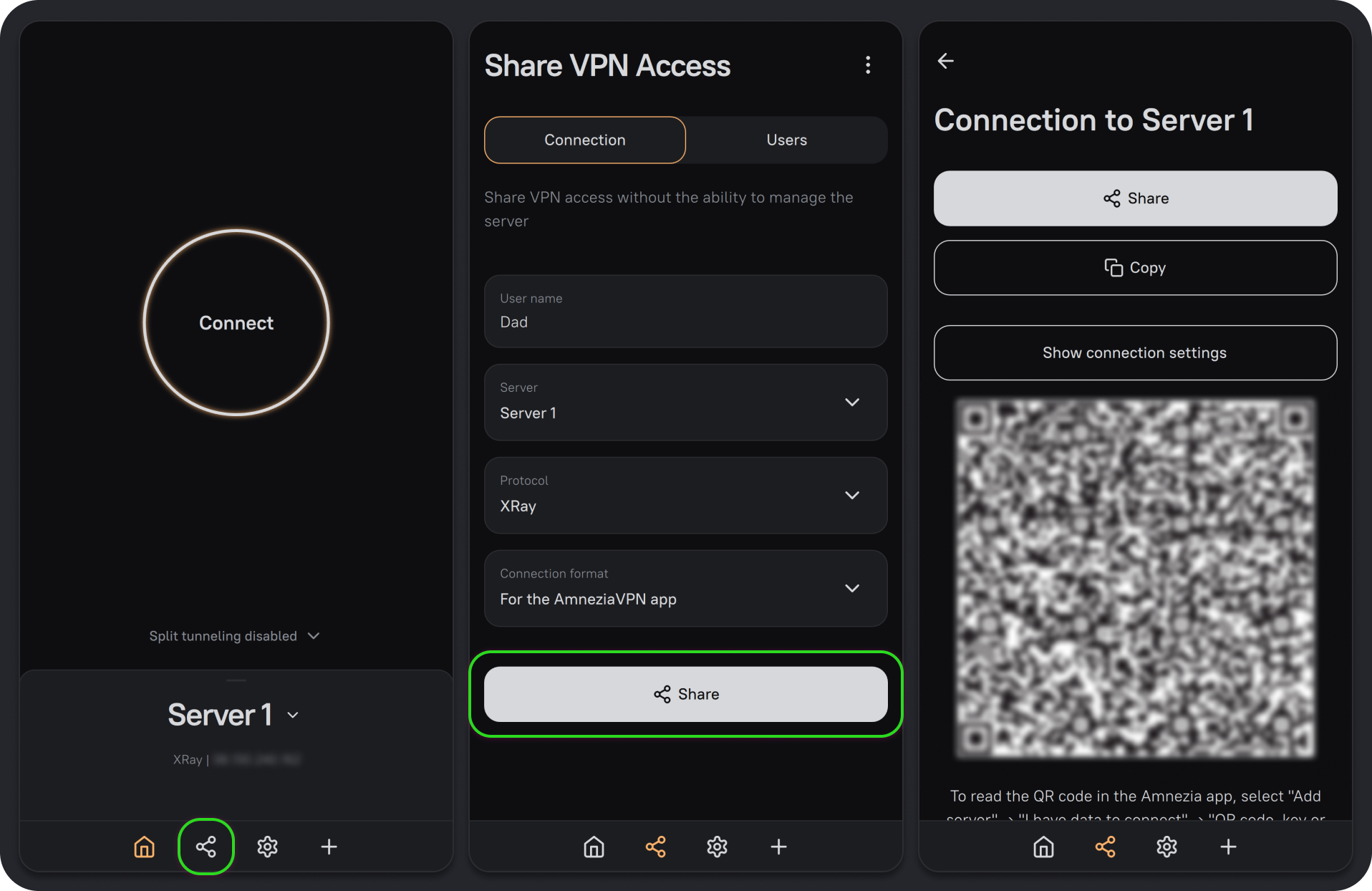
- Open AmneziaVPN on a device with a full-access connection to the server. Click Share in the bottom bar, to the left of the gear icon.
- Open the Connection tab. In User name, enter a name for the person you're sharing with. You can change it later. Choose a Server if you have more than one, then select the Protocol and Connection format. Click Share.
Connection formats
- For the AmneziaVPN app creates a
vpn://...connection key. This key cannot be used with AmneziaWG or a router. - AmneziaWG native format creates a
.confconfiguration file. This file can be used with AmneziaWG or a router.
Each guest key or configuration file works with one protocol only: the one you select here.
- Choose how to share the connection. What gets shared depends on the connection format you selected:
Click Share to save a file or send it to a contact:
amnezia_config.vpncontains only thevpn://...connection key.amnezia_for_awg.confcontains the connection settings, including J, S1-S4, H1-H4, I1-I5.
Click Copy to copy either the
vpn://...key or the.conffile contents to the clipboard.Scan the QR code with AmneziaVPN on another device to add a guest connection.
QR code limitation
QR codes do not work with AmneziaWG native format. Use another sharing method if you selected this format.
Revoke guest access
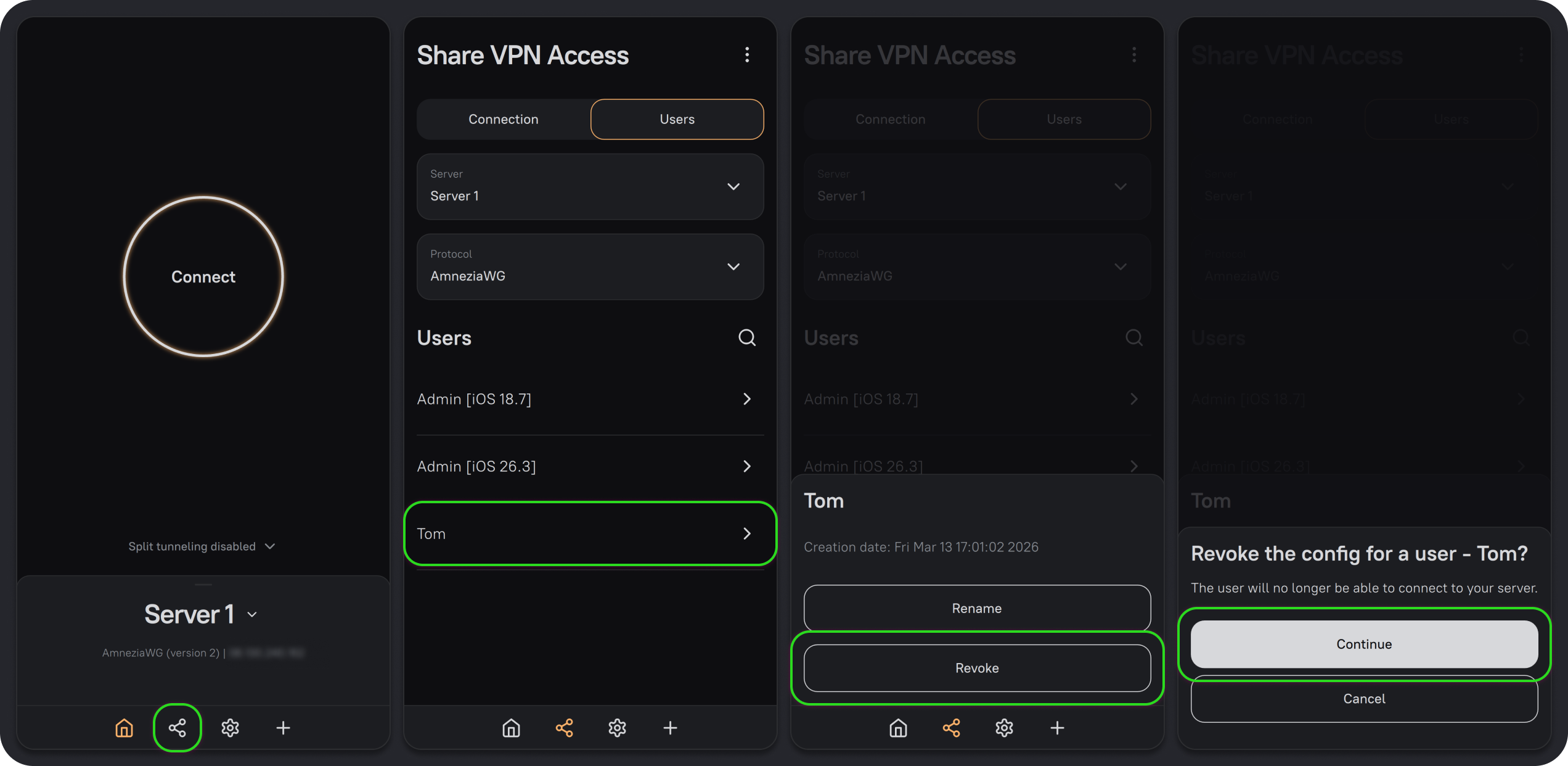
- Open AmneziaVPN on a device with a full-access connection to the server. Click Share in the bottom bar, to the left of the gear icon.
- Open the Users tab. Select the server and VPN protocol, then click the user whose access you want to revoke.
- Click Revoke, then Continue.